

Synology VMM Pro: Een productie-VM optimaliseren met behulp van AI (2026)

The virtual machine that runs this shop spent months carrying twice the hardware it needed. Eight virtual CPUs, sixteen gigabytes of memory, and a real workload that never touched more than a quarter of either. That is not unusual. You size a guest generously on day one because you have no idea what it will need, the site works, and nobody ever goes back. This article is the log of going back. We cut that guest to four vCPUs and eight gigabytes using Synology VMM Pro, with an AI assistant driving the shell, and the store was unreachable for two minutes and seven seconds. The resize itself is the boring part — it is two fields in a dialog. The interesting parts are the measurement that proved eight gigabytes was enough, the order of operations that stops the guest from running out of memory on first boot, and the snapshot that made all of it reversible. VMM Pro makes each of those cheap, and that is the honest argument for it.
SynoPower Club-punt:Right-sizing is the least glamorous job in self-hosting and the one with the best return. Nobody writes a blog post about the eight gigabytes they gave back. But the memory sitting idle inside an oversized guest is not saving you anything — on a Synology it is pinned, so it cannot be used by anything else on the box. We got eight gigabytes back on a host that was starting to feel full, which is two more guests we no longer have to buy hardware for. What made it safe rather than frightening was VMM Pro underneath: a locked snapshot before the first command, and a machine I could put back the way it was in ninety seconds if any of this went wrong. It did not go wrong. But I would not have started without it.
Inhoudsopgave
What Is Synology VMM Pro?
Virtual Machine Manager is Synology’s hypervisor package. It installs from Package Center, it is free, and on a single NAS it will happily run Linux, Windows and Virtual DSM guests with local snapshots. VMM Pro is the paid upgrade that turns that single-box hypervisor into a small cluster: several NAS units managed as one pool, guests that can move between them, high availability, and snapshot replication from one host to another.
The distinction matters for this article because right-sizing is a capacity decision, and capacity only becomes interesting once you have more than one machine in the pot. On a single NAS, memory you free up is memory that sits unused on that NAS. In a VMM Pro cluster it is memory that another host can borrow during a failover, or that a new guest can be built into without buying anything.
A Virtual DSM guest — a full DSM installation running as a virtual machine — is the workload we resized here. It runs Container Manager, which runs the two Docker containers behind this store. That layering is deliberate and it is what made the job safe. We covered moving a Docker stack between guests in our VDSM Docker migration walkthrough; this article is about making the guest underneath it the right size.
VMM Pro vs the Free Edition: What the Upgrade Actually Buys
The free edition is not a crippled demo. It runs production guests, it takes snapshots, and for a single NAS it is genuinely all most people need. What you are buying with VMM Pro is not features on a guest, it is features across hosts.
| Vermogen | Free edition | VMM Pro |
|---|---|---|
| Run guests on one NAS | Ja | Ja |
| Local snapshots | Ja | Ja |
| Several NAS units as one cluster | Nee | Ja |
| Move a guest between hosts | Nee | Ja |
| High availability failover | Nee | Ja |
| Replicate snapshots to another host | Nee | Ja |
Check the official feature page linked in the references before you buy, because Synology does revise the edition split between DSM releases. The practical test is simpler than the table: if you own one NAS and you are happy restoring from a snapshot by hand, the free edition is fine. The moment you own a second NAS and you want the first one’s guests to survive it dying, you want a VMM Pro-licentie.
Our cluster is three nodes, and only two of them are powered on most of the time. The third is a cold standby that wakes on a schedule to receive replicated snapshots and goes back to sleep. That pattern — pay for electricity only when you need the redundancy — is a VMM Pro pattern, and it is the reason the console shows a permanent warning about a host it cannot reach. The warning is the design working, not a fault.
How a Production Guest Ends Up Twice the Size It Needs
Three things push guests upward and nothing pushes them back down. The first is that the initial size is a guess, and a generous guess costs nothing on day one. The second is that every incident ends with someone raising a limit. Ours had two memory incidents in one week; both were fixed by giving something more room, and neither was ever revisited. The third is that a dashboard showing eighty per cent memory use looks alarming, so nobody volunteers to take memory away. None of that is a VMM Pro problem. It is a human one, and it is why oversized guests are the norm.
That last one is the trap, and it is worth saying plainly: the number most people look at to decide whether a container has room is the wrong number. Ours said the database container was at eighty-one per cent of its limit. It was not. Section five is entirely about why, and about the measurement that turned the VMM Pro resize into a safe decision rather than a hopeful one.
Right-Sizing a Live Guest With VMM Pro in 4 Steps
The whole job is four steps, and only the third one takes the site offline. Total downtime for us was two minutes and seven seconds, measured from the moment the containers stopped to the first HTTP 200 after the guest came back. VMM Pro is involved in steps one and three; the middle step happens inside the guest.
Take a locked snapshot before anything else
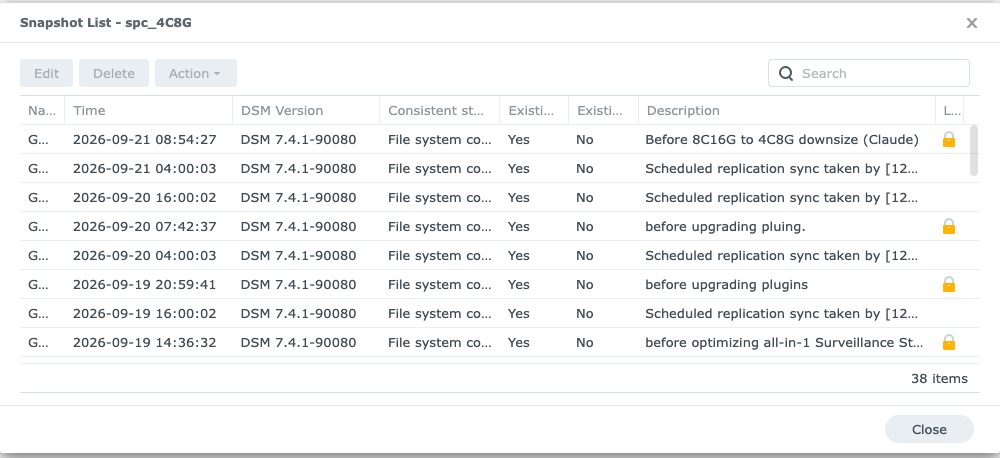
Snapshot the guest from VMM Pro and mark it as locked so scheduled snapshot rotation cannot delete it. This is your undo button for every step that follows, and it captures the whole machine rather than one folder. Give it a description that says what you were about to do, because in three months the timestamp alone will mean nothing to you.
Measure what the workload actually uses, not what the dashboard reports
Read the cgroup memory statistics inside each container and separate anonymous memory from page cache. Only anonymous memory is unreclaimable, and only that number should drive your sizing. Check the database buffer pool against the real size of the database while you are there. Ours had a three gigabyte buffer pool in front of a database of six hundred and sixty-three megabytes.
Shrink the containers before you shrink the guest
Lower the application and database memory limits first, and sync the same values into your compose file so a later rebuild does not undo them. A container whose current usage already exceeds the new limit cannot simply be capped – change its configuration and restart it so it comes back smaller, then apply the lower limit. Getting this order wrong is how you produce an out-of-memory loop on first boot.
Stop the containers cleanly, resize, and verify behaviour rather than settings
Stop the database container with a generous timeout and confirm a clean shutdown in its log, so the guest does not boot into crash recovery. Shut the guest down, set the new vCPU and memory values in VMM Pro, and power it back on. Then verify the thing users touch: real pages returning 200, correct prices, no out-of-memory events – not just the numbers you typed into the dialog.
Why docker stats Will Talk You Out of the Right Answer
Before the resize, the container dashboard looked like a machine with no room to give:
docker stats
  WordPress      2.51 GiB / 7 GiB    (35.9%)
  WordPress-DB   3.25 GiB / 4 GiB    (81.1%)   <-- looks nearly full
Read that and you conclude the database needs its four gigabytes and the guest cannot go below twelve. Both conclusions are wrong, because the memory usage those tools report includes page cache, and page cache is reclaimed automatically the moment anything else needs the memory. The number that decides whether you get an out-of-memory kill is anonymous memory. Read it directly:
docker exec <container> sh -c
  'awk "/^(cache|rss) /{printf "%-8s %8.0f MBn", $1, $2/1048576}"
   /sys/fs/cgroup/memory/memory.stat'

  WordPress      rss 1305 MB    cache 1609 MB
  WordPress-DB   rss 2553 MB    cache 1543 MB
Now the picture inverts. The application container is genuinely using 1.3 GB, not 2.5 GB. And of that 1.3 GB, 768 MB is a single shared opcode cache that every worker process maps rather than copies — so twenty worker processes were costing roughly twenty-seven megabytes each, not the two hundred and fifty megabytes a naive sum of process memory suggests. The database’s 2.5 GB was almost entirely a buffer pool sized at three gigabytes for a database of 663 MB.
One more trap in the same family: the historical peak counter will happily show a container that touched its ceiling, because that counter also includes page cache. Both of ours had. Neither had ever been out-of-memory killed. Check the out-of-memory counter, not the high-water mark.
With those two facts in hand, eight gigabytes stopped being a risky number. Dropping the buffer pool to one gigabyte — still comfortably larger than the entire database — freed more real memory than the resize needed. The number we eventually typed into VMM Pro was already proven before the guest was shut down.
How a Small Team Uses VMM Pro to Reclaim a Whole Server
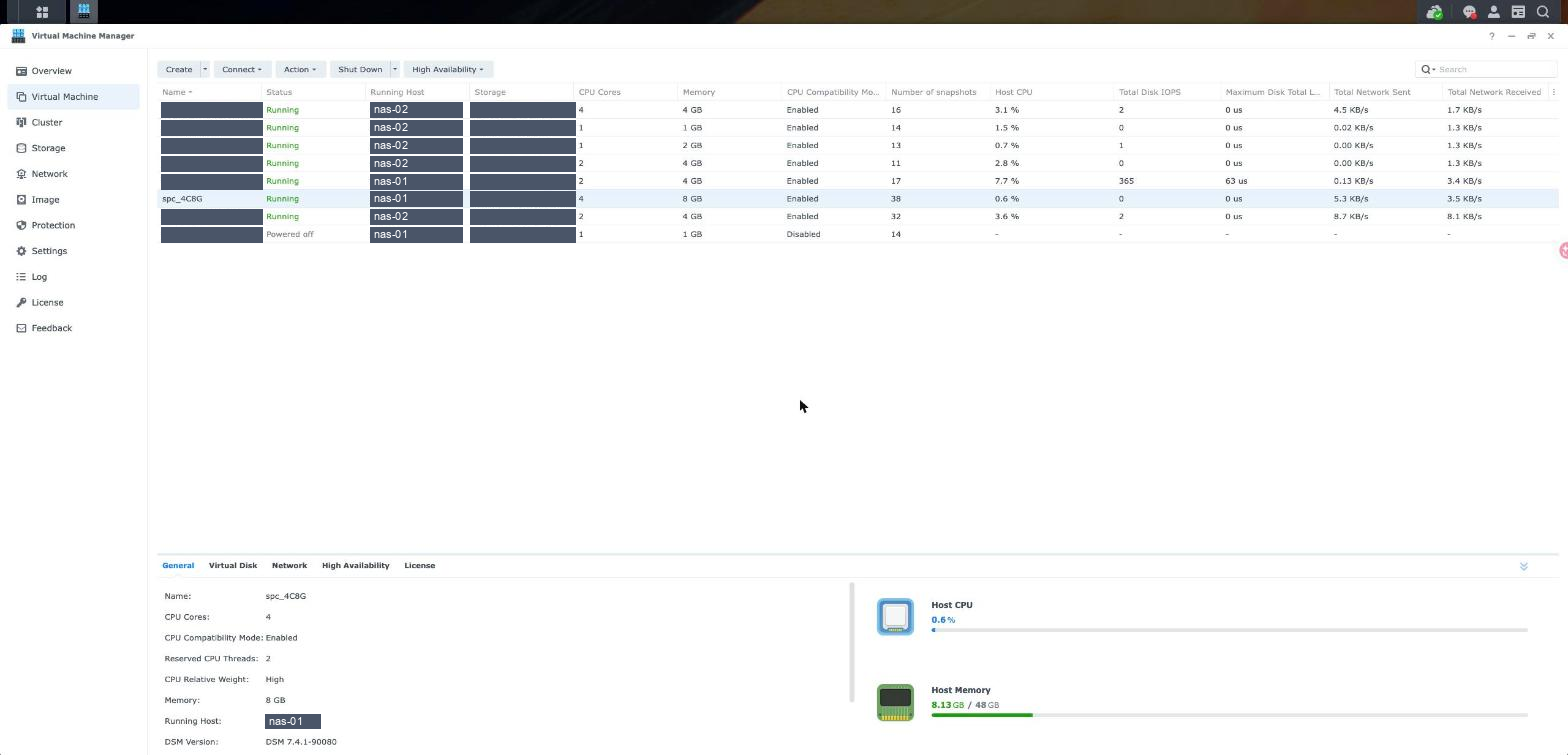
Memory in a Synology guest is pinned. The hypervisor locks and pre-allocates it, which means you cannot oversubscribe it the way you can on some other platforms. Sixteen gigabytes assigned to a guest is sixteen gigabytes no other guest can have, whether the guest is busy or idle. That constraint is what makes right-sizing worth doing on VMM Pro specifically: freeing memory is the only way to create capacity short of buying a NAS.
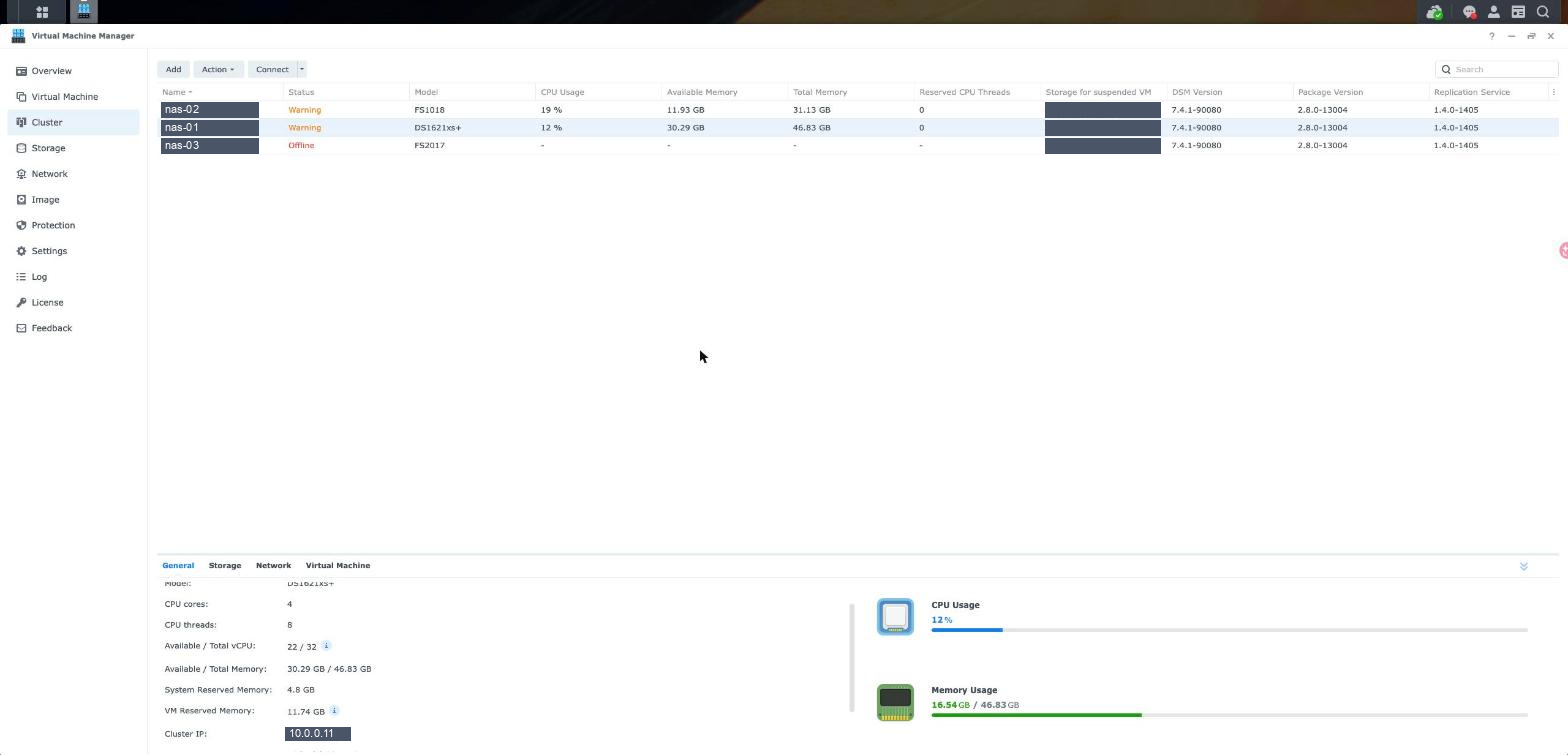
Eight gigabytes came back on a host with 46.83 GB total. Available memory went from roughly twenty-two gigabytes to 30.29 GB. In practical terms that is two more guests of the size we actually run, created out of nothing but measurement. On a three-node cluster it also means the surviving hosts have more headroom to absorb the guests of a node that fails, which is the whole point of paying for VMM Pro in the first place.
The CPU side told the same story more bluntly. The guest had eight virtual CPUs and was using about a sixth of one core at rest. Four was not a compromise; four is still generous, and VMM Pro applied it in a single field. Since the resize the guest sits at a load average of 1.36 against four vCPUs, which is roughly a third utilized at the busiest part of the day.
The Order of Operations That Prevents a Boot-Time Out-of-Memory Loop
This is the part that is easy to get wrong and expensive to get wrong. Container memory limits and the guest memory you set in VMM Pro are two separate ceilings, and if the sum of the container limits exceeds the guest’s memory, you have told the containers they may use more than the machine has. Under load the kernel resolves that disagreement by killing something.
Our limits before the change were seven gigabytes for the application container and four for the database — eleven gigabytes on a sixteen gigabyte guest, which was fine. On an eight gigabyte guest it would have been an incident waiting for its first traffic spike. So the containers had to come down first:
| Instelling | Before | After |
|---|---|---|
| Guest | 8 vCPU / 16 GB | 4 vCPU / 8 GB |
| Application container limit | 7168 MB | 4096 MB |
| Database container limit | 4096 MB | 2048 MB |
| Database buffer pool | 3 GB | 1 GB |
| Database max connections | 300 | 100 |
| Apache worker ceiling | 50 | 35 |
There is a second-order rule hiding in that table. You cannot lower a container’s memory limit below what it is currently using and expect the kernel to be polite about it. The application container was using less than its new limit, so it was capped live with no restart and no downtime. The database container was using more, so its buffer pool had to be reconfigured and the container restarted first; only then could the lower limit be applied. Neither of those steps happens in VMM Pro — both have to be finished before you open the resize dialog.

The worker ceiling is the one real cost of the whole exercise, and it deserves to be stated rather than buried. Cutting the application container from seven gigabytes to four means fewer concurrent requests can be in flight: fifty down to thirty-five, a thirty per cent reduction in peak concurrency. Day to day the site runs eleven workers, so nothing changed. During an advertising burst it might. That is a trade we made knowingly, and it is written down so the next person does not rediscover it during an outage.
What the AI Assistant Actually Did, and Where It Was Wrong
The assistant did the parts that reward patience: it took the VMM Pro snapshot before touching anything, read the cgroup statistics rather than trusting the dashboard, worked out the ordering constraint on the container limits, and verified the result by fetching real pages and checking that prices still rendered in the right currency. That is perhaps forty minutes of careful work compressed into a few minutes, and it is genuinely useful.
It was also wrong three times in one session, which is the more useful half of the story.
- It recommended ten gigabytes when the owner asked for eight. The owner was right — but only because the oversized buffer pool was fixed at the same time. The assistant had the measurement in front of it and still anchored on the safer number.
- It renamed the guest, read
success: truefrom the API, and reported the rename as done. It had not been renamed. The rename field it used was the one that identifies the guest, not the one that changes its name, and the API returns success either way. - It saw a VMM Pro cluster warning about an unreachable host and flagged it as a degraded failover path. The host was a cold standby that is deliberately powered off. The alert had been there for months by design.
The pattern in all three is the same: confident output from a plausible check. The guardrails that actually matter are therefore unglamorous. Take the snapshot first, every time, before the first command rather than before the risky one. Never accept a return value as proof — read the state back and look at the field you meant to change. And verify behaviour, not settings: a page that loads and a price that is correct beat any number of confirmations that a command exited zero.
None of that is specific to AI. It is the same discipline you would want from a new colleague with root access who is fast, tireless, and occasionally sure about something that is not true.
Waar vind je meer officiële bronnen?
Three videos worth the time before you resize anything with VMM Pro. The first is the best overview of the package itself; the other two cover creating and licensing guests, which is where most people get stuck on their first attempt.
Limits to Know Before You Trust VMM Pro With Production
Memory cannot be oversubscribed. Every gigabyte you assign is locked away from everything else on the NAS, busy or not. This is the constraint that makes right-sizing valuable, and it is also the reason a generous guess on day one is more expensive here than on platforms that allow overcommitment.
Shrinking memory needs a reboot, because VMM Pro will not take memory away from a running guest. Growing a virtual disk happens live, and so does growing some resources, but taking memory away means shutting the guest down. Budget a short outage and schedule it; two minutes is achievable but it is not zero.
Virtual disks grow and never shrink. If you over-allocated storage rather than memory, VMM Pro will not give it back. The only route is building a new guest and migrating into it, which is a much longer afternoon than this one was.
CPU limits inside containers may not work at all. On this guest the kernel has no CFS bandwidth control, so container CPU quotas are rejected outright — and worse, attempting to set one in the same command as a memory limit makes the whole command fail silently. Memory limits and the application’s own worker ceiling are the only CPU protection available.
A snapshot is not a backup. It lives on the same host and the same storage pool as the guest it protects. VMM Pro can replicate snapshots to another host, which is closer, but the thing that survives a building fire is still an off-site backup of the data itself.
Finally, watch what the console shows. Container detail pages display environment variables in plain text, database passwords included. That is Docker being honest rather than a flaw in the package, but it means a single screenshot of the wrong page publishes a credential. If that bothers you — it should — move secrets into a file the container reads instead of passing them as variables.
Referenties
- SynoPower Club, onze Synology NAS-handleidingen en camera-reviews
- Synology — Virtual Machine Manager, the official feature and edition comparison
- Synology Kenniscentrum — Virtual Machine Manager hulp, guest settings and cluster setup
- Docker — docker container update, changing a running container’s memory limit
- Apache — MaxRequestWorkers, the worker ceiling discussed in section seven
Veelgestelde vragen
Is VMM Pro worth it for a single NAS?
Probably not. Virtual Machine Manager is free and the free edition runs production guests with local snapshots on one box. VMM Pro pays for itself once you have a second NAS and want guests to move between hosts, fail over automatically, or replicate their snapshots somewhere other than the machine they run on.
Can I shrink a Synology virtual machine without downtime?
No. Memory is locked and pre-allocated on a Synology host, so VMM Pro cannot reduce it live and the guest has to be shut down. Ours was unreachable for two minutes and seven seconds end to end, including a clean database shutdown beforehand. Growing a virtual disk, by contrast, does happen while the guest is running.
How do I tell how much memory a container really needs?
Read the cgroup memory statistics inside the container and look at the anonymous memory figure, not the total reported by monitoring tools. Total usage includes page cache, which the kernel reclaims on demand. Our database container reported 3.25 GB of a 4 GB limit but held only 2.55 GB of unreclaimable memory, most of which was an oversized buffer pool.
What order should I change container limits and guest memory in?
Containers first, guest second – do not open the VMM Pro resize dialog until the container limits fit. If the container limits add up to more than the guest will have, the guest can run out of memory on first boot. Also note that a container already using more than the new limit cannot simply be capped: reconfigure it and restart it so it comes back smaller, then lower the limit.
Does a locked snapshot in VMM Pro count against my retention?
Locking exempts a snapshot from scheduled rotation, which is exactly why you want it before a change like this. Without the lock, a busy replication schedule can quietly delete the restore point you were relying on before you get round to confirming the change was safe.
Is it safe to let an AI assistant resize a production virtual machine?
With guardrails, yes, and the guardrails are not complicated. Take a snapshot before the first command rather than before the risky one. Require the state to be read back rather than trusting a success response. Verify behaviour that users can see instead of the settings you just wrote. Our assistant got three things wrong in one session and every one of them was caught by reading state back.
What did right-sizing actually save?
Eight gigabytes of pinned memory and four virtual CPUs returned to the VMM Pro host pool, taking available memory from roughly twenty-two gigabytes to 30.29 GB out of 46.83 GB. That is room for two more guests of the size we run, and more headroom for the cluster to absorb a failed node.
Can Virtual DSM run Docker, and does resizing the guest affect the containers?
Yes, a Virtual DSM guest is a full DSM installation, so Container Manager installs exactly as it would on a physical NAS. Resizing the guest in VMM Pro does not touch the containers themselves, but their memory limits are a separate ceiling that must be brought down to fit the smaller guest before you shrink it.