

Cluster VMM Synology bloccato: cosa succede quando un nodo va offline

Aggiornato il 6 novembre 2026
I powered one node of a two-node Virtual Machine Manager cluster down to replace its fans, and the surviving node told me the Synology VMM cluster frozen state had kicked in. Every protection plan turned red, the cluster refused to fail anything over, and twenty minutes later a virtual DSM guest I had not touched shut itself down and took two websites offline for 21 minutes. Most of what I saw was completely normal and needed no action at all. One thing was not, and it is the trap this page exists to warn you about.
SynoPower Club Point: the alarming parts of this were harmless and the quiet part was the one that cost me real downtime. Eight protection plans screaming “Destination lost” meant nothing and needed no action. Meanwhile a guest shut itself down with no notification at all, and I only found out because a website stopped answering. Watch your guests, not the dashboard colours.
What does a Synology VMM cluster frozen message mean? #
When a node in a Virtual Machine Manager cluster becomes unreachable, the remaining nodes have to decide whether it is genuinely gone or merely unreachable. Getting that wrong means two copies of the same virtual machine running at once on two nodes, both writing to their own disks, which destroys data. Rather than guess, VMM freezes.
The exact wording you get is this:
Cluster frozen. You will need to force create a new cluster before performing failover on your virtual machine.
Read it as information, not as an instruction. It is telling you what you would have to do if the missing node were never coming back. If you powered it off deliberately and intend to switch it on again in half an hour, you do nothing at all.
Why does a two-node cluster freeze instead of failing over? #
Because automatic failover needs a quorum, and two nodes cannot form one. With three nodes, two surviving members outvote the missing one and can safely conclude it is dead. With two nodes, the survivor has exactly one vote and no way to distinguish “the other node is off” from “the network between us broke”. Both look identical from where it is standing.
| Cluster size | Automatic failover | Planned switchover |
|---|---|---|
| 2 nodes | NO, cluster freezes | SÌ |
| 3 or more nodes | Yes, with high availability | SÌ |
This is the single most important thing to understand about a two-node setup, and it is worth being blunt: a two-node cluster is not a high availability cluster. It gives you planned migration with a few minutes of downtime, and it gives you replicated copies you can recover from. It does not give you a machine that catches your workloads when hardware dies unattended. If you need that, you need a third node.
What does the surviving node show while the other is off? #
During a Synology VMM cluster frozen event every protection plan in the cluster turns red and reports its replication destination as lost, with a tooltip offering to let you add the missing host back or pick a different replication destination. In my case that was all eight plans at once, which looks like a catastrophe and is not one.
Do not accept that offer. Re-pointing a protection plan at a different destination starts a full baseline replication, which on a large VM can take an hour and saturate your storage, and you will then have to point it back afterwards. The plans resume on their own the moment the missing node returns. Leave them alone.
The cluster overview will also list the absent node with a status of offline, and the virtual machines that were running on it will simply be gone from the running list. None of this needs intervention during planned maintenance.
How do you take a node offline safely in 4 steps? #
Migrate every virtual machine off the node #
Use protection plan switchover for each VM: snapshot and replicate while it is still running, shut it down gracefully, switch over, then power it on at the destination. Expect three to seven minutes of downtime per machine. Never force a power off, because switchover will refuse to run on a VM that was not shut down cleanly.
Check what else runs on the host itself #
An empty virtual machine list does not mean an idle machine. Surveillance Station, Hyper Backup, Download Station and Synology Drive all run on the host and all stop when it powers down. My eight cameras stopped recording for the full outage because I only thought about virtual machines.
Write down every guest that is running #
Before you shut anything down, list every virtual machine in the cluster and which node it is on. After the work you check that whole list, not just the machines you moved. A guest can stop during cluster operations without any notification in Virtual Machine Manager, and it will not necessarily be one you touched.
Shut down, do the work, and leave the cluster alone #
Once the node is off, do not change any protection plan, do not start or stop virtual machines, and do not act on the frozen cluster warning. The cluster replication engine processes one operation at a time, and a change queued during maintenance can block the migration you run afterwards.
Can one node carry the whole cluster? #
Mine did, but not comfortably. With seven virtual machines consolidated onto a single DS1525+ the node ran at 94 percent CPU for the duration. Everything stayed up and no VM fell over, but there was no headroom left for anything unexpected.
Plan for this before you start rather than discovering it halfway through. Add up the vCPU and memory of every machine you intend to consolidate and compare it to the smaller node, not the bigger one. If the answer is uncomfortable, shut down the workloads you can live without for an hour instead of migrating them.
Why did one virtual machine shut itself down? #
This is the one part of the outage that actually cost me downtime. Roughly twenty minutes after I powered the first node off, a virtual DSM guest that was running on the surviving node shut itself down with no warning, taking two websites offline for 21 minutes until I noticed and started it manually.
There was one visible sign, and only one. In the virtual machine list, that guest showed a status of Frozen in red while the other seven showed Running, and its host CPU read zero per cent. Nothing was flagged anywhere else, no notification was sent, and the cluster overview said nothing about it.
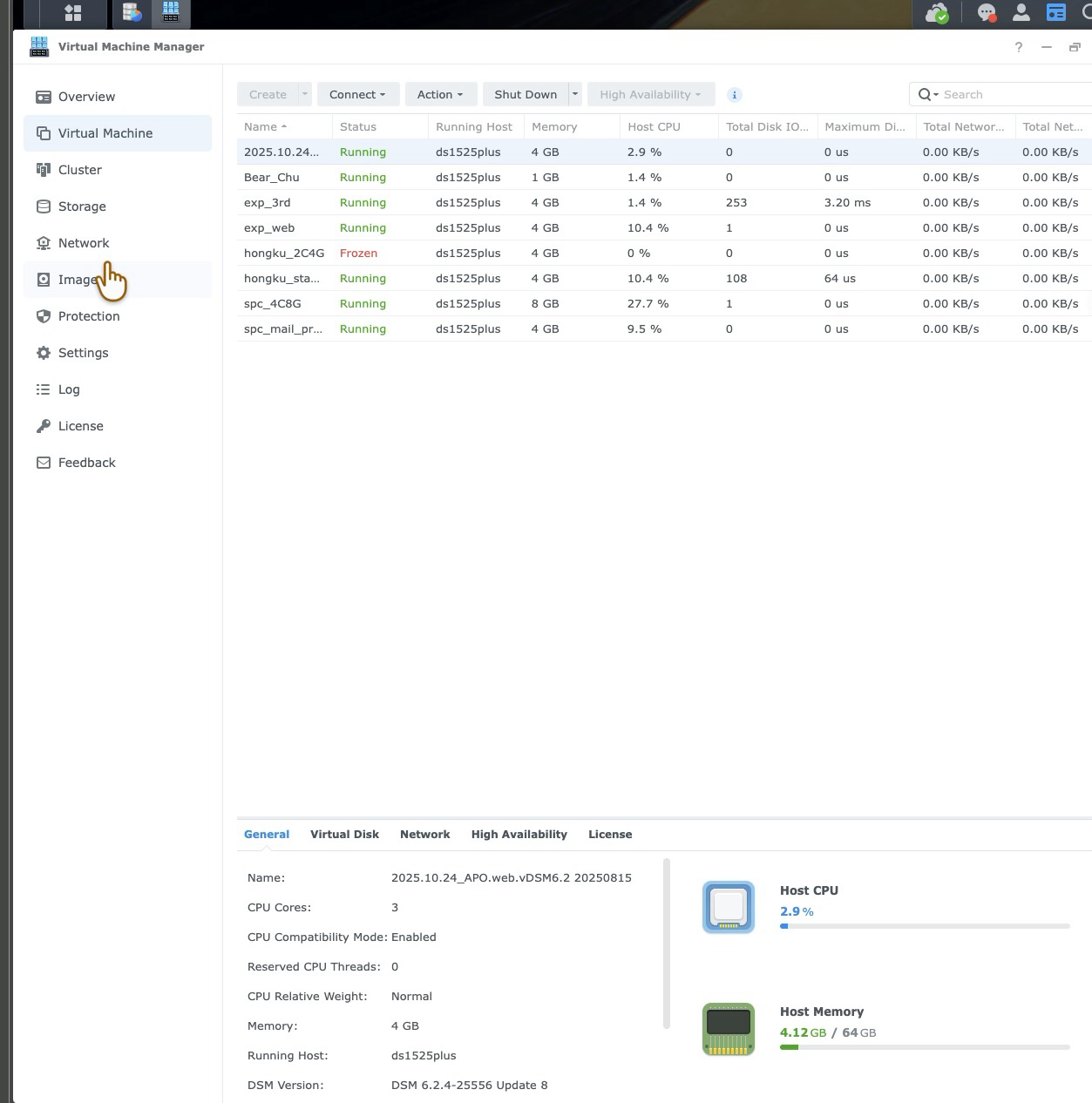
Note that this guest-level Frozen status is a different thing from the cluster-level message earlier on this page. The cluster being frozen is a safety state that affects failover decisions for everything. A single guest showing Frozen means Virtual Machine Manager has lost its management channel to that one machine.
Nothing appeared in the Virtual Machine Manager interface. The evidence was in the surviving node system log, and it starts with the licence subsystem failing to take a lock:
10:29:49  lock timeout(180 sec): TryLock ret: 5 [(license:cate),(license:vdsm)]
10:29:49  Process failed to lock license/guest
10:33:19  Failed to check vdsm [...] license status and update grace period
10:34:24  error, stale lock[object]
10:32:19  Close invalid guest interface: a2b4a693-...
Virtual Machine Manager periodically walks every virtual DSM guest, validates its licence and refreshes a grace period. With one node gone that check could not acquire its lock, timed out after 180 seconds, and from then on every subsequent check failed against a stale lock. Four separate guests logged a failed licence check during the outage.
Only one of them had its guest interface closed, and only that one went down. I cannot tell you why that guest and not the other three. All of my licences show the same activated host, so the simple explanation that a licence was anchored to the node I switched off does not survive contact with the evidence: on that reasoning every guest should have failed, and seven of eight were fine.
What I can tell you is that it was not a one-off, and it is not specific to that guest. Searching the archived logs, the same closing of a guest interface has happened to seven different guests over the past two weeks, including six of them on a single day while the cluster was doing migration work, and on days with no node shutdown at all. Almost every time it was harmless and the guest carried on. So the shutdown did not cause this. It created the conditions that expose it.
My working theory, clearly labelled as a theory #
I want to be explicit that what follows is speculation. I have not proven it and you should not act on it as though it were established.
Virtual Machine Manager re-validates each virtual DSM licence on a schedule and refreshes a grace period, and that check takes a lock. When the cluster is degraded or busy with migration work, the lock times out after 180 seconds and then goes stale, at which point every later check fails against it. My guess is that this is a race condition: if the validation happens to fail at the wrong moment for a particular guest, that guest gets its management interface closed and is marked Frozen.
What makes me suspect timing rather than configuration is that the guests affected keep changing. Seven different machines over two weeks, six of them in one day, with no pattern I can tie to licence, DSM version, memory size or which node they sit on. If a specific licence or a specific guest were at fault, the same machine would fail every time. It does not.
What I cannot explain with that theory is why the affected guest usually keeps running and occasionally does not. That is the part worth a support ticket, which is where this is going next. If you are seeing the same thing, the log lines above are what to send them.
If you take one practical thing from this section, make it this: a guest can stop during cluster work without anything in Virtual Machine Manager telling you, and it will not necessarily be the guest you would have predicted.
How do you catch a guest that stops on its own? #
Externally, because the cluster will not tell you. My websites were behind a CDN that kept serving cached pages, so the front page looked perfectly healthy for the entire 21 minutes the guest was down. The only honest signal is an uptime check that requests something uncacheable, such as a login page, from outside your network.
Make a list of every guest before you start and check every one of them against that list when the work is finished. Do not check only the machines you moved. The guest that stopped on me was one I had not touched at all, running on the node that stayed up.
It is also worth reviewing the License page in Virtual Machine Manager before any planned outage, and moving anything anchored to a node you are retiring permanently. The procedure is the same one we describe in our VMM Pro licence migration guide. That is good hygiene rather than a fix for the behaviour above, which I have not been able to pin to a specific licence rule.
What should you avoid during a Synology VMM cluster frozen event? #
Do not edit any protection plan, including plans belonging to virtual machines you are not touching. The cluster replication service handles one operation at a time. A plan edit queued while the cluster is degraded can sit there blocking everything behind it, and a switchover you run later will simply hang in progress with no error. That cost me 27 minutes of downtime on an unrelated website on a previous occasion.
Do not act on the frozen cluster warning by force creating a new cluster. That is the recovery path for a node that is genuinely never returning, and running it during planned maintenance creates work you then have to undo.
Do not rename a node while migrations are in flight either. Tooling that identifies hosts by name rather than by host identifier will silently stop matching, and scripts that wait for a host to change will wait forever without reporting an error.
How long does recovery take when the node returns? #
Power the node back on and let DSM finish starting before you expect anything from the cluster. While it is still coming up, the login page will tell you the system is getting ready and ask you to log in later, which is normal and not a fault.
Once the node rejoins, the protection plans clear their lost destination state and resume on their own schedule without any action from you. The frozen cluster warning disappears. Moving virtual machines back is the same switchover procedure in reverse, and in my case it was faster going back than coming across, at 192 seconds for a four core machine, because everything was already warm.
Check afterwards that each VM is not only running but running on the node you expect, because storage and compute move independently. A machine whose storage has moved but whose execution host has not will work perfectly while reading every disk block across the network.
Limits and safety notes #
Everything on this page was observed on a two-node cluster running DSM 7.4 with Virtual Machine Manager Pro. Behaviour on three or more nodes is materially different, because quorum changes the decision the survivors are able to make, and high availability becomes available.
A Synology VMM cluster frozen state is a safety mechanism and not a fault. Treat anything that tries to talk you out of it with suspicion, including your own impatience. The failure mode it is protecting you against is two live copies of one virtual machine writing to separate disks, which is not recoverable by restoring a snapshot.
Protection plan replication is not a backup. It is a warm copy that follows your mistakes. Deleting a file inside a guest replicates that deletion. Keep real backups separately.
Finally, measure your own downtime rather than trusting the numbers here. Mine ranged from 192 to 426 seconds per machine depending on what the VM was doing, and a mail server took around two minutes longer than its website to start accepting connections again, because the service has to finish starting after the operating system is already up.
Domande frequenti #
Is a Synology VMM cluster frozen message a sign of a fault? #
No. It is the expected behaviour of a two-node cluster when one node becomes unreachable. Without a third node there is no quorum, so the survivor cannot safely decide whether the other node is dead or merely unreachable. Freezing prevents two copies of the same virtual machine running at once.
Should I force create a new cluster when prompted? #
Not during planned maintenance. That prompt is the recovery path for a node that is never coming back. If you switched the node off yourself and intend to switch it on again, do nothing and the cluster recovers by itself when the node rejoins.
All my protection plans show destination lost. Do I need to fix them? #
No. They resume automatically when the missing node returns. Do not accept the offer to choose a new replication destination, because that triggers a full baseline replication which can take hours and has to be undone afterwards.
Can I get automatic failover with only two Synology NAS units? #
No. High availability in Virtual Machine Manager needs at least three nodes. With two you get planned switchover, which means a few minutes of downtime per machine while you move it deliberately, plus replicated copies for recovery. That is not the same as a machine catching your workloads when hardware fails unattended.
Can a virtual DSM guest shut down on its own during maintenance? #
Yes, and it will not tell you. One of mine stopped roughly twenty minutes into a planned node outage, on the node that stayed up, and it was a guest I had not touched. The host log showed the licence check failing to take a lock, then closing that guest interface. Nothing appeared in the Virtual Machine Manager interface at all.
Can I predict which guest is at risk? #
In my case, no. Four guests logged a failed licence check during the same outage and only one was closed. All my licences show the same activated host, so the obvious explanation that a licence was anchored to the node I switched off does not fit, because seven of eight guests were fine. Treat every guest as worth checking afterwards.
Can one node run every virtual machine on its own? #
Sometimes, but check first. Seven machines consolidated onto my remaining unit pushed it to 94 percent CPU with no headroom left. Add up the vCPU and memory of everything you plan to consolidate and compare it against the smaller of your two nodes before you start.
What should I avoid doing while one node is powered off? #
Do not edit any protection plan, even for virtual machines you are not touching, because the replication service processes one operation at a time and a queued change can block a later switchover indefinitely. Do not start or stop virtual machines, and do not rename nodes while migrations are in flight.
References and recordings #
This recording shows the surviving node during the outage, including the protection plans turning red and the Synology VMM cluster frozen notice itself.
This one is a full unedited switchover, so you can see how long each stage of moving a live machine between nodes actually takes.
And this is the maintenance that caused the outage in the first place, with the measurements that came out of it.
- Synology Knowledge Center on VMM clusters, including node requirements
- Protection plans, replication and switchover in Virtual Machine Manager
- Virtual Machine Manager licences and how they are activated per host
- Our guide to migrating a VMM Pro licence between hosts, the same page that handles virtual DSM licences
- Our introduction to building a VMM Pro cluster, for the setup this page assumes
- The fan replacement that required this outage, with the measurements it produced