

Synology VDSM:利用 AI 遷移 Docker 並調整虛擬磁碟大小 (2026)

虛擬 NAS 是那種人們安裝一次,玩上一下午就忘了自己擁有的功能之一。這很可惜,因為 Synology VDSM(運行在 Virtual Machine Manager 內部的 Virtual DSM)悄悄解決了小型自託管中最令人頭痛的兩個問題。首先,在不同機器之間遷移 Docker 堆疊通常需要花費一個晚上繁瑣的工作。其次,當虛擬磁碟空間不足時,大多數人會認為必須重建整個系統。但在 VDSM 上,這兩個問題都不存在。本指南將詳細介紹我們用大約 35 分鐘完成的一次實際遷移:將一個包含五個插件的內部 Redmine 問題追蹤器從一個 VDSM 虛擬機遷移到另一個虛擬機,並由 AI 助理控制 shell。遷移過程中,目標虛擬機器的磁碟空間不足,因此我們將虛擬磁碟從 10 GB 擴展到 20 GB 並繼續遷移。以下所有內容都是實際發生的,包括一個會悄無聲息地破壞應用程式的陷阱。
SynoPower Club 點:我看過很多人因為覺得 NAS 虛擬化只適用於實驗室環境而非實際工作而放棄使用它。本文中的遷移案例就是一個真實的工作——一個三位同事每天都在使用的工單系統——而最讓我驚訝的並非人工智慧,而是 VDSM 所需的繁瑣操作。無需為虛擬機器管理程式購買授權,無需單獨的管理伺服器,也無需在不相容的格式之間進行繁瑣的匯出匯入操作。虛擬機器在運行過程中磁碟空間不足,我只需在文字方塊中輸入一個更大的數字即可解決。整個遷移過程耗時 35 分鐘,唯一被注意到的中斷是在一個無關的網站上短暫的 90 秒。如果您已經擁有一台 Synology 且記憶體充足,那麼只需安裝軟體包即可完成遷移。
目錄
Synology VDSM 是什麼?
VDSM 是 Synology 的 Virtual DSM:它是 DiskStation Manager 的完整副本,作為客戶作業系統運行在實體 NAS 上的 Virtual Machine Manager 內部。它的行為就像一台獨立的 NAS,擁有自己的 IP 位址、DSM 登入資訊、軟體包和容器管理器。從網路角度來看,它只是區域網路上的另一台 Synology。從硬體角度來看,它只是在你已付費的裝置上運行的額外進程。
實際優勢在於隔離性。如果所有服務都直接運行在主機上,一個運行異常的容器可能會導致整個辦公室依賴的檔案伺服器癱瘓。將工作負載分散到多個 VDSM 虛擬機器中,每個虛擬機器都有獨立的記憶體上限、CPU 分配和磁碟空間,並且可以在不影響其他虛擬機器的情況下重新啟動其中一個。
所有支援 Virtual Machine Manager 的 NAS 都免費包含一個 VDSM 授權。運作第二台及後續虛擬機器需要額外授權。 付費 Virtual DSM 授權 每個使用者只需一個免費實例即可完成本文中的所有內容,這也是為什麼許多人已經擁有此功能卻從未啟用它的原因。如果您以後需要新增、映射或取消映射授權,我們提供了相關教學。 管理 VDSM 授權.
VDSM 和 Virtual DSM 是同一個東西的兩個名稱。Synology 的官方文件用全名,多數使用者用縮寫。這個縮寫也是 oVirt 虛擬化專案裡一個不相干元件的名稱,所以在 Synology NAS 上,它指的一定是 Virtual DSM。
付費授權的運作方式和多數人想的不一樣。每一組授權可多建立一台虛擬機器,並包含三年的 Virtual DSM 軟體升級。虛擬機器本身永不過期。三年期滿後它仍可繼續運作,只是不再收到新的更新。啟用新的金鑰,就會再開始三年的更新。一組金鑰同一時間只能在一台 Synology NAS 上啟用,而且新增金鑰時 NAS 必須連上網路。
VDSM 用戶端的要求並不高,Synology 在其檔案中列出了這些要求。 Virtual Machine Manager 規格:
- 虛擬磁碟必須位於 Btrfs 磁碟區上。 Virtual Machine Manager 不會將虛擬機器儲存在 ext4 檔案系統上。
- NAS 本身需要 2 GB 以上的記憶體才能運行任何虛擬機器。
- 每台虛擬機器本身至少需要 1 GB 記憶體,實際工作負載會需要更多。
- 一個機型能順暢執行幾台虛擬機器,取決於它的 CPU 和已安裝的記憶體。
虛擬機器和直接裝在實體機上的 DSM 並不完全相同。少了三樣東西,而且都和實體硬體有關:
- USB 直通功能無法使用,因此無法將插入 NAS USB 連接埠的裝置交給虛擬機器。
- 控制面板中沒有「外部設備」和「硬體和電源」頁面。
- 虛擬機器內部不支援無線網路卡、MTU 設定和連結聚合 (LACP)。實體網路由主機管理。
這些都不影響大家使用它的常見理由。檔案服務、Docker、郵件伺服器,或是正式環境的測試副本,運作起來都和在另一台獨立的 NAS 上一樣。
Synology VDSM 與第二台實體 NAS:您需要哪一個?
客觀來說,並非虛擬化更好,而是以彈性換取彈性。第二台實體伺服器可以在第一個實體伺服器發生故障時繼續運行,而虛擬分散式系統(VDSM)虛擬機器則不行。虛擬機器帶來的好處是,你可以在幾分鐘內(而不是幾天)建立、調整大小、建立快照和遷移整個伺服器。
| VDSM 客人 | 第二個物理NAS | |
|---|---|---|
| 增加一個的成本 | 首位客人免費,之後需購買授權。 | 整個NAS加上硬碟 |
| 準備工作時間到了 | 分分鐘 | 天數,包括運輸時間 |
| 調整 CPU、RAM 或磁碟容量 | 編輯字段,重啟訪客 | 購買新硬體 |
| 能夠抵禦主機硬體故障 | 不 | 是的 |
| 快照和克隆 | 內建於 Virtual Machine Manager | 不適用 |
| 遷移到另一個NAS。 | 遷移或複製客戶機 | 將其物理遷移 |
| 最適合 | 隔離服務、部署、整合小型伺服器 | 備份目標和真正的冗餘 |
對於這項工作,選擇顯而易見。我們要將一個使用率不高的問題追蹤系統(它原本佔用一個完整的 VDSM 虛擬機器)整合到一個已經運行網站且有剩餘容量的虛擬機器上。這不需要任何新的硬體。只需要十分鐘和一點耐心。
開始之前你需要準備什麼
首先,給助手建立一個獨立的登入帳號,而不是把你的帳號給他。在DSM中,開啟控制台,進入“使用者和群組”,然後點選“建立”。給它一個容易混淆的名字——我們用的是 克勞德 附描述 人工智慧控制 — 並讓 DSM 產生一個強隨機密碼。
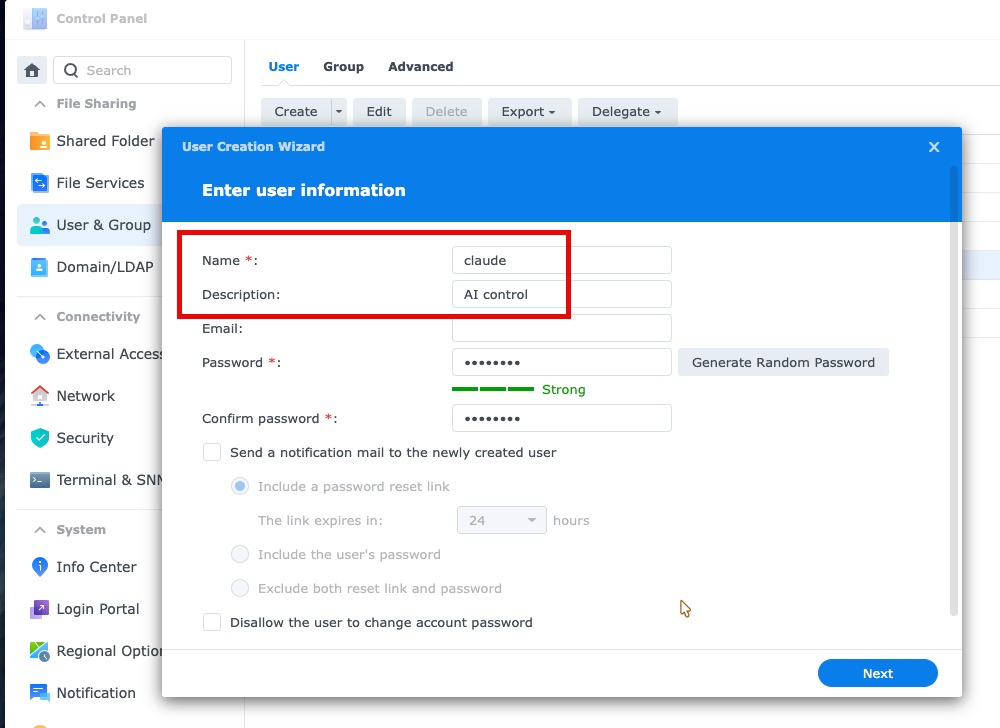
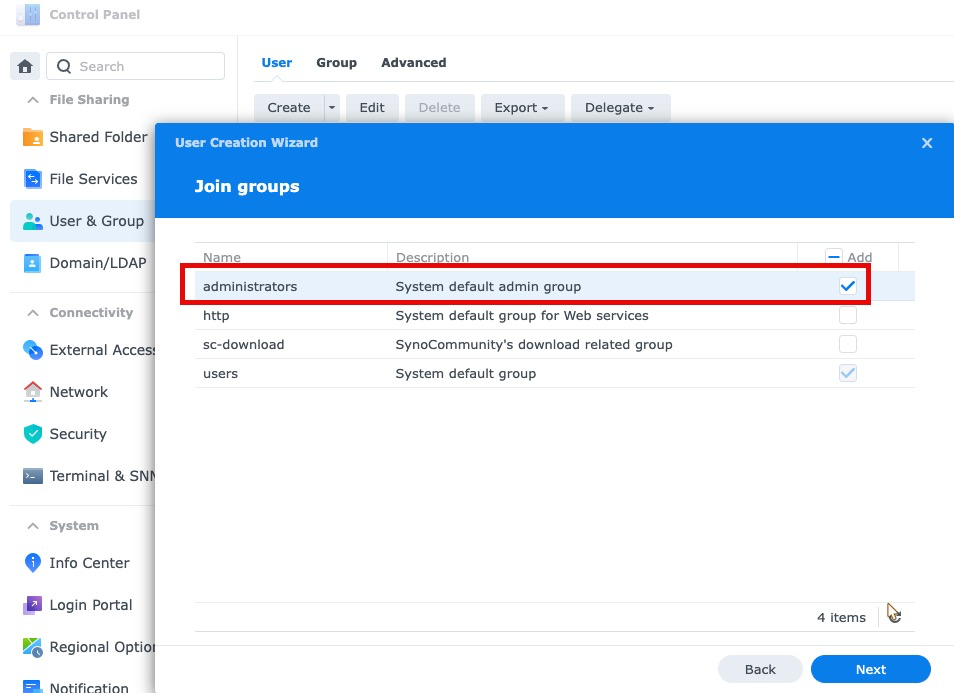
在下一個畫面上,勾選。 管理員. 這並非可選項:DSM 只允許管理員群組成員透過 SSH 登錄,因此群組以外的帳戶根本無法存取 shell。在兩台 VDSM 虛擬機器上執行相同的操作,然後確保在「控制台」>「終端機和 SNMP」中啟用 SSH。
工作完成後,停用該帳戶。 這就是創建獨立帳戶的意義。在控制面板中編輯該使用者並將其關閉或直接刪除;只需單擊即可撤銷存取權限,無需更改您自己的憑證,而且助理所做的一切操作都將歸因於專門為此目的而建立的登入帳戶。如果僅僅因為曾經方便就保留一個永久啟用的管理員帳戶,小型莊園就會累積無人記得授予過的訪問權限。
兩台 VDSM 虛擬機,兩台虛擬機都啟用了 SSH,在目標虛擬機上安裝了容器管理器。您還需要注意一點,這一點幾乎每個人第一次都會犯:Docker 二進位檔案不在 DSM 的預設 PATH 環境變數中。軟體包二進位檔案位於軟體包目錄下,因此每個命令都需要完整路徑或 shell 別名。
出發前請務必確認目的地是否有空位,而不是在轉機途中才檢查。以下命令是完整的飛行前檢查流程,適用於所有 VDSM 旅客。
在此之前還有一件事: 拍攝Virtual Machine Manager房間內兩位客人的照片. 快照功能包含在 Virtual Machine Manager 的免費版中,並非只有專業版才有,每個虛擬機器最多可以保存 32 個快照。 VDSM 快照會捕捉整個虛擬機,因此,如果匯入出錯或某個命令執行了您意想不到的操作,您可以回滾虛擬機,而無需重新建置。這只需幾秒鐘,是整個過程中最經濟實惠的保障措施。請在來源虛擬機器和目標虛擬機器上都建立快照,因為來源虛擬機器是您的備用方案。
# Docker 不在 DSM 的 PATH 環境變數中 - 請使用完整路徑 D=/volume1/@appstore/ContainerManager/usr/bin/docker # 正在運行的是什麼?它基於什麼構建? sudo $D ps -a sudo $D images # 目標磁碟區還剩下多少空間? df -h /volume1 # 目標虛擬機器實際上有多少可用記憶體? free -mVDSM Docker 遷移四步驟指南
我們執行了以下四個步驟,它們適用於需要在 VDSM 虛擬機器之間遷移的任何容器堆疊。順序很重要:首先停止應用程式容器,以防止在轉儲過程中向資料庫寫入任何資料;資料庫容器保持運行,以便可以乾淨地進行轉儲。
首先對 VDSM 進行快照,然後對容器本身進行快照。
首先對兩台虛擬機器都進行 Virtual Machine Manager 快照——免費版自備此功能,它相當於後續所有操作的撤銷按鈕。然後停止應用程式容器,並對其執行 `docker commit` 命令,將其檔案系統擷取為新映像。很多人會跳過這一步,而跳過這一步會導致遷移失敗。綁定掛載的路徑不會被包含在提交作業中,因此資料磁碟區仍需要在第二步驟中單獨處理。
匯出資料庫並歸檔資料卷
在資料庫容器仍在運作的情況下,使用 mariadb-dump 和單一事務標誌進行邏輯轉儲。然後將綁定掛載的資料目錄打包成 tar 檔案。之所以優先選擇邏輯轉儲而不是複製原始資料文件,是因為目標位置的鏡像標籤幾乎不可能與資料庫建置版本完全相同。
將所有內容直播給目的地客人
透過 SSH 將來源端的 docker save 映像壓縮到目標端的檔案中,然後對資料歸檔檔案執行相同的操作。我們 816 MB 的鏡像被壓縮到 366 MB,並在大約一分鐘內透過區域網路傳輸完畢。在遠端載入鏡像,並使用 preserve-permissions 標誌解壓縮歸檔檔案。
先啟動資料庫,導入數據,再啟動應用程式。
僅啟動資料庫服務,等待其接受連接,匯入轉儲文件,並確認表和行數與來源文件一致。確認無誤後再啟動應用程式容器。將重啟策略設定為始終重啟,以確保堆疊在虛擬機器重新啟動後仍然有效。
為什麼 Compose 檔案不是整個容器
這就是陷阱所在,光是這一點就值得你花點時間去了解一下。我們 Redmine 堆疊的 compose 檔案宣告了兩個綁定掛載點:一個用於上傳的文件,一個用於資料庫。閱讀該檔案後,你可能會理所當然地認為,在新虛擬機器上重新建立堆疊意味著複製兩個目錄並執行 `docker compose up` 命令。
事實並非如此。多年來,五個外掛程式、這些外掛程式引入的 Ruby gems、郵件配置以及幾個修改過的初始化檔案都被直接安裝到了運行中的容器中。所有這些都沒有放在任何卷中。一條命令就讓我們明白了情況有多糟。
# 容器和它所源自的鏡像之間有多少個檔案不同? sudo $D diff Redmine | wc -l 6764 # 容器內插件,沒有任何磁碟區支援 sudo $D exec Redmine ls /usr/src/redmine/plugins拉取一個全新的官方鏡像會產生一個不包含任何插件的容器,該容器指向的資料庫仍然保留著遷移過程中創建的 144 個表。應用程式不會發出明顯的錯誤提示。它會啟動,看起來幾乎一切正常,然後出現難以診斷的故障。將正在運行的容器提交到鏡像可以完全避免這個問題,但代價是需要更大的傳輸時間。在區域網路內兩個 VDSM 虛擬機器之間傳輸,這大約需要一分鐘,所以每次都值得這樣做。
小型團隊如何使用 VDSM 整合伺服器
這種遷移模式是大多數小型團隊最終都需要的。幾年下來,你會累積一些用途單一的虛擬機:一個用於維基,一個用於工單跟踪,一個用於監控儀錶板(如我們之前描述的結構)。 家庭資料中心概覽)。每台設備在建造之初都設計得非常寬敞,而現在每台設備都只以當初設計容量的一小部分運行,而主機卻超負荷運轉,一切都感覺有點慢。
使用 VDSM 進行整合意味著將空閒工作負載合併到一個已啟動的虛擬機器中。我們的工單追蹤器原本佔用一個完整的虛擬機,擁有獨立的 CPU 分配和 1GB 內存,而每天只有三個人訪問幾次。將其遷移到現有 Web 堆疊旁邊後,直接釋放了 CPU 分配,但目標容器佔用了大約 480MB 的常駐記憶體。
確保安全的關鍵在於正確地停用來源服務,而不是讓它繼續運作。我們將舊容器的重新啟動策略設為“否”,停止了它們,並在目錄中留下一個文字文件,說明服務現在的運行位置,然後關閉虛擬機並停用自動啟動。這樣就形成了一個完整的回溯點,即使主機重啟,它也不會悄悄地重新啟動並開始接收新實例永遠不會看到的寫入操作。重複的副本是導致一次看似完美的遷移在一個月後演變成資料遺失事件的典型原因。
調整空間不足的虛擬磁碟的大小
進出一半時,目標位置空間不足。這卷容量為 9.6 GB,剩餘空間 1.5 GB,而我們正準備添加一個 816 MB 的鏡像檔案和 123 MB 的應用程式資料。在實體 NAS 上,到此為止,直到新硬碟到貨。但在 VDSM 中,這則是一個文字方塊。
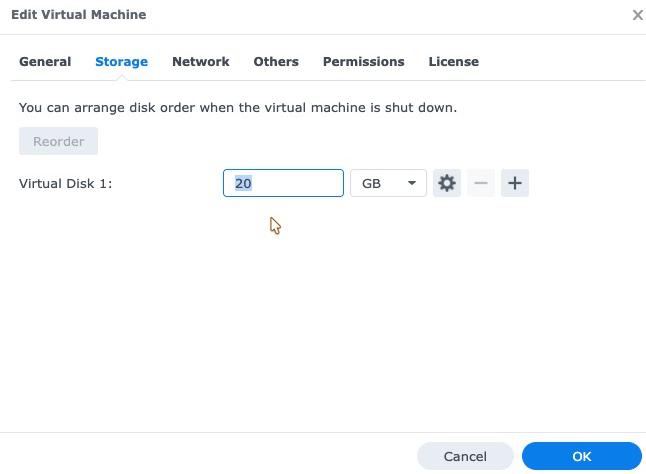
在 Virtual Machine Manager 中開啟訪客設置,前往儲存選項卡,輸入新大小,然後按一下確定。 為此,無需關閉該客人的房間。 虛擬磁碟會在機器持續運作的同時成長,這與直接在裸機上擴容有著本質的差異。需要注意的是,虛擬磁碟只能增長,不能縮小,因此操作無法撤銷,也無需擔心容量大小。
真正讓整個過程輕鬆無痛的關鍵在於虛擬機器內部的運作機制。 DSM 會自動擴充分割區和檔案系統以填入新增空間。無需執行儲存管理器精靈,無需編輯分區表,無需重建卷,也無需遷移資料。我們的磁碟區從 9.6 GB(剩餘 1.5 GB)擴展到 20 GB(剩餘 13 GB),容器仍正常運作。這正是將服務部署在 VDSM 而非裸機上的最大優勢:即使容量規劃出現錯誤,後期也很容易修復。

AI助理實際上做了什麼
這裡有必要嚴謹一些,因為「AI 移動了我的伺服器」這種說法既容易讓人輕信,也容易讓人難以置信。這個助手並沒有什麼神奇的洞見。它只是對 VDSM 的兩位客人進行了簡單的操作,而且它的系統性遠超一個疲憊不堪、一天工作下來的人。
它最有價值的一點是,在進行任何操作之前運行了 `docker diff` 命令,發現了 6764 個已更改的文件,並拒絕了顯而易見的方案。任何遵循 compose 檔案的人都不會有理由執行這個命令。其次有價值的一點是驗證:導入完成後,它統計了雙方的表、問題、項目、日誌條目和附件的數量,檢查了每個附件文件是否都存在於磁碟上,列出了應用程式已註冊的插件版本,並確認沒有待處理的資料庫遷移。這是一份繁瑣的檢查清單,而繁瑣的檢查清單正是下午五點最容易被忽略的。
它仍然需要人類對後果做出判斷。重啟 VDSM 用戶端來增加記憶體意味著關閉一個正在運行的網站,這是一個需要詢問而不是想當然的決定。刪除任何內容也是如此。把助手當作一雙不知疲倦、動作非常迅速且一絲不苟的手來檢查,而那些不可逆的操作則留給自己。
哪裡可以找到更多官方資源
Virtual Machine Manager 軟體包承載所有 VDSM 用戶機,它已在 DSM 中存在多年,並且已有完善的文件支援。以下三個教學將介紹軟體包的安裝、建立客戶機以及您將要使用的介面概覽。
在將VDSM用於生產之前,您需要了解其限制。
首先,記憶體比 CPU 更容易成為瓶頸。我們的目標虛擬機只有 2GB 內存,在我們添加任何內容之前就已經使用了交換空間。第二個應用程式和第二個資料庫大約需要額外 480MB 內存,所以我們將其增加到 4GB。在規劃遷移之前,而不是之後,檢查目標虛擬機器的可用記憶體。
其次,VDSM 虛擬磁碟只會成長而不會縮小。如果過度配置,您無法透過編輯欄位來回收空間;縮小磁碟的唯一方法是建立一個新的虛擬機器並將資料遷移到其中。選擇一個兩年後您仍然滿意的數值。
第三,許可。 NAS 包含一個虛擬機器;每個額外的虛擬機器都需要單獨的授權。 Virtual DSM授權. 跨多個NAS單元進行叢集、即時遷移以及更大的快照保留時間是… VMM Pro 應該採用更具特色而非標準設計的方案。如果你的方案是將一個繁忙的房間分割成四個整潔的房間,那麼在設計之前,請先計算一下成本。
適當地評估客人的體型本身就是一項任務: 如何合理配置一台配備 VMM Pro 的生產虛擬機.
第四,應避免的幾種情況。不要將虛擬機器的虛擬磁碟放在與備份相同的實體磁碟區上,並稱之為備份。不要在與繁忙的檔案伺服器共用機械硬碟的虛擬機器上執行持續大量寫入的資料庫。不要將 VDSM 視為第二台機器的替代品,因為如果主機崩潰,其上的所有虛擬機器都會同時崩潰。此外,不要遷移從未檢查過的容器,原因已在上文「compose-file」部分中說明。
第五,憑據。遷移會涉及到資料庫密碼、環境變數和設定檔。我們的遷移作業移動了一個包含明文資料庫憑證的compose文件,因此我們特意將其放置在網路伺服器文件根目錄之外。如果compose檔案留在文件根目錄內,任何猜測檔案名稱的人都可以下載它,而這正是憑證洩露的一種令人沮喪的常見方式。如果您讓助手編寫遷移腳本,請務必查看腳本寫入檔案的位置。遷移完成後,請停用您為助理建立的帳戶,而不是留下一個仍然有效的管理員帳戶。
第六,在進行任何操作之前先建立快照。在 Virtual Machine Manager 中建立 VDSM 快照只需幾秒鐘,無需專業版授權即可使用,幾乎可以避免本文中提到的所有錯誤,只需兩分鐘即可完成回溯。無論是由人還是助手編寫,這都是任何遷移操作手冊中都值得添加的步驟。
最後,務必進行驗證而非臆測。本文中的每一項論點都已在運行系統中進行了驗證:核對了雙方的表計數、檢查了磁碟上是否存在附件文件、確認了應用程式註冊的插件版本、檢查了是否存在待處理的遷移,並完整重啟了整個堆疊以驗證其能夠自行恢復。服務響應並不意味著遷移完成。只有當您證明遷移在 VDSM 虛擬機器重新啟動後仍然有效,且舊副本不再接受寫入作業時,遷移才算完成。
關於如何取得這些授權,我們在此說明一下:SynoPower Club 出售 Synology 授權,並提供全天候即時金鑰交付服務。這裡要注意的是以下兩點: Virtual DSM授權, 除了免費客人之外,每位客人都需要付費,而且 VMM Pro授權 如果您需要叢集、即時遷移或每個虛擬機器 255 個快照而不是 32 個,那麼… 完整授權目錄 也涵蓋 Surveillance Station 和 MailPlus。
參考
- SynoPower Club, 我們的 Synology NAS 指南和攝影機評測
- Synology — Virtual Machine Manager, 這是運行 VDSM 的軟體包的官方概述。
- Synology 知識中心 — Virtual Machine Manager 幫助, 訪客建立和設定
- Docker — Docker 容器提交, 第一步背後的命令
- Docker — docker 映像保存, 用於在客人之間傳輸影像
經常問的問題
Synology VDSM 是免費的嗎?
所有支援 Virtual Machine Manager 的 NAS 設備都免費包含一個 Virtual DSM 授權,足以永久運行一個虛擬機器。其他虛擬機器都需要付費授權。 Virtual Machine Manager 軟體包本身可從套件中心免費下載。
Synology VDSM 能否運作 Docker 容器?
是的。 Virtual DSM虛擬機器是一個完整的DSM系統,因此您可以像在實體NAS上一樣,透過套件中心安裝容器管理器。本文中的遷移操作是在兩個虛擬機器之間遷移一個包含兩個容器的堆疊,而無需對容器本身進行任何更改。
我需要關閉虛擬機器才能擴大虛擬磁碟嗎?
不,您也不需要重新安裝任何東西。在 Virtual Machine Manager 的「儲存」標籤中增加磁碟大小,磁碟會在虛擬機器運作的同時成長。虛擬機器內部的 DSM 會自動擴充分割區和檔案系統,因此無需使用儲存管理器精靈,也無需重建磁碟區。唯一的規則是虛擬磁碟可以成長,但不能縮小。
Synology VDSM 與在主機 NAS 上執行 Docker 相比有何不同?
直接在主機上運行容器更簡單,速度也略快,因為不需要虛擬化層。而虛擬機器則提供了隔離性:記憶體上限固定、獨立的分散式系統管理 (DSM) 需要重啟,以及可以進行快照或遷移的整個伺服器。主機用於必須始終正常運作的任務,而虛擬機器則用於可以進行故障排除的任務。
遷移前是否需要建立 VDSM 快照?
是的,而且它是免費的。 Virtual Machine Manager 標準版包含快照功能,每個虛擬機最多可儲存 32 個快照,快照會擷取整個虛擬機,而不僅僅是一個資料夾。在開始操作之前,請在來源系統和目標系統上各建立一個快照。當 AI 助理控制 shell 時,這一點尤其重要:在驗證目標系統之前,務必保持來源系統完整;在執行任何不可逆操作之前,必須獲得確認;並且要仔細閱讀即將運行的命令,而不是憑直覺批准。
如果容器內沒有捲,那麼安裝在容器內的檔案會發生什麼事?
它們只存在於容器的可寫層中,一旦容器從鏡像重新創建,它們就會立即消失。在遷移容器之前,請執行 `docker diff` 指令來查看容器的差異。如果差異很大,請將容器提交到鏡像中,然後遷移該鏡像,而不是從鏡像倉庫拉取一個新鏡像。
像這樣的遷移需要多長時間?
對於一個小型堆疊,包括驗證在內,整個過程大約需要 35 分鐘。透過千兆區域網路傳輸一個 366 MB 的壓縮鏡像本身大約需要 1 分鐘。大部分時間都花在了檢查原始檔和確認結果上,這部分絕對不能操之過急。
我可以將 Synology VDSM 虛擬機器在 NAS 設備之間遷移嗎?
是的。 Virtual Machine Manager 可以將虛擬機器遷移或複製到同一叢集中的另一個 NAS,這比遷移虛擬機器內部的容器要好得多,而且通常效果更佳。像我們在這裡所做的那樣移動容器,更適合將兩個虛擬機器合併為一個,而不是遷移整個虛擬機器。