

Synology Surveillance365 Tutorial: Cloud-Überwachung ohne NAS (2026)

Zwanzig Jahre lang bedeutete die Installation von Kameras in einem Gebäude auch die Installation eines Rekorders. Synology Surveillance365 macht das überflüssig. Surveillance365, das am 22. Juli 2026 weltweit eingeführt wurde, ist eine Videoüberwachungsplattform als Service (VaaS): Ihre Kameras zeichnen auf einer microSD-Karte in der Kamera auf, und Sie verwalten Ihre gesamte Flotte bequem per Browser oder Smartphone. Kein NAS, kein NVR, kein Server erforderlich. Der Standard-Tarif ist bei Synology-Kameras kostenlos, wodurch Surveillance365 die günstigste Möglichkeit bietet, ein verwaltetes Kamerasystem für mehrere Standorte zu betreiben. Dieser Leitfaden erklärt die Funktionsweise, die Einrichtung in vier Schritten, die Unterschiede zu Surveillance Station und – besonders wichtig – die Einschränkungen, die in den offiziellen Unterlagen nicht erwähnt werden.
SynoPower Club-Punkt:Ich habe jahrelang im Hauptquartier von Synology Support-Tickets bearbeitet, und die Frage nach mehreren Standorten tauchte immer wieder auf: ein Kunde mit neun Geschäften, neun kleinen NAS-Geräten, neun VPN-Tunneln und einem völlig erschöpften IT-Mitarbeiter, der zwischen ihnen hin und her fährt. Surveillance365 ist genau für solche Kunden gedacht. Aber lassen Sie sich von “Cloud” nicht täuschen – der kostenlose Tarif hat ein Relay-Limit, das Sie überraschen wird, wenn Sie zum ersten Mal versuchen, vier Standorte gleichzeitig von einem Flughafen aus zu überwachen. Lesen Sie den Abschnitt zu den Limits, bevor Sie Ihr gesamtes Netzwerk dafür einsetzen.
Was ist Synology Surveillance365?
Surveillance365 ist die cloudbasierte Videoüberwachungsplattform von Synology, in der Branche auch als VSaaS bekannt. Anstatt dass ein lokaler Server Ihre Streams aufzeichnet, speichert jede kompatible Synology-Kamera die Aufnahmen auf einer eigenen microSD-Karte und meldet sie an ein Cloud-Portal, auf das Sie sich von überall aus einloggen können.
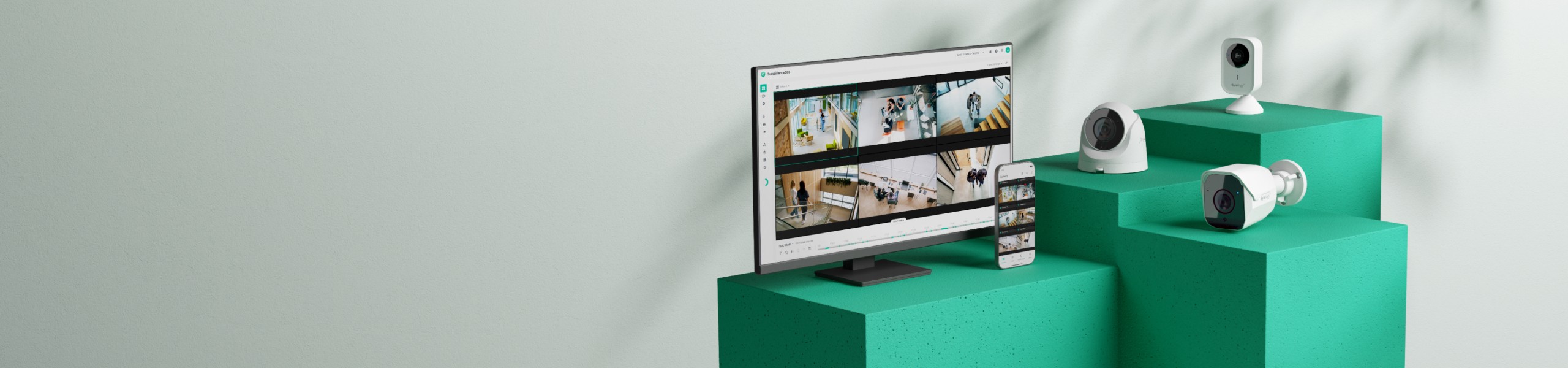
Diese Architektur ist wichtiger als es zunächst klingt. Da die Aufnahmen auf der Kamera gespeichert bleiben, wird Ihre Internetverbindung nicht kontinuierlich mit Videos belastet. Zusätzlich gibt es einen Modus für geringe Bandbreite, der den Verbrauch um bis zu 501 Tbit/s reduziert. Die KI-Analyse findet ebenfalls direkt auf der Kamera statt, nicht in der Cloud. Dadurch werden Benachrichtigungen sofort ausgelöst und Sie zahlen nicht für Cloud-basierte Auswertungen.
Die Einrichtung geht tatsächlich schnell. Synology gibt zwei Minuten pro Kamera an, und das deckt sich mit meinen Erfahrungen: Kamera einschalten, Speicherkarte einlegen, im Portal hinzufügen. Keine Portweiterleitung, kein VPN, keine statische IP-Adresse.
Surveillance365 vs Surveillance Station: Welches Programm brauchen Sie?
Es handelt sich um zwei unterschiedliche Produkte desselben Herstellers, und eine Fehlentscheidung kann teuer werden. Kurz gesagt: Surveillance Station ist ein vollständiger NVR, der auf Ihrem NAS installiert wird; Surveillance365 ist ein Cloud-Manager für Kameras, die ihre Aufnahmen selbst speichern.
| Überwachungsstation | Surveillance365 | |
|---|---|---|
| Wo es verläuft | Auf Ihrem Synology NAS | Synologys Cloud-Portal |
| Wo das Filmmaterial lebt | NAS-Laufwerke | microSD-Karte in jeder Kamera |
| Benötigte Hardware | Ein NAS plus Laufwerke | Nur Kameras |
| Gerätelizenz | Zusätzlich zu den 2 mitgelieferten Artikeln erforderlich | Im kostenlosen Tarif nicht erforderlich. |
| Kameras von Drittanbietern | Ja, sehr breite Unterstützung. | Nur Synology-Kameras |
| Am besten geeignet für | Ein Standort, lange Datenspeicherung, verschiedene Kameramarken | Viele kleine Standorte, keine lokale IT-Abteilung |
Wenn Sie bereits ein NAS und einige Kameras an einer Adresse besitzen, bleibt Surveillance Station die leistungsstärkere Option – umfassendere Aufzeichnungsregeln, längere Speicherdauer auf kostengünstigem lokalem Speicher und Unterstützung für nahezu jede ONVIF-Kamera. Surveillance Station-Bereitstellungsleitfaden deckt diesen Weg ab, und Sie werden benötigen Gerätelizenzen über die beiden hinaus, die Ihr NAS bereits enthält.
Die beiden Funktionen schließen sich nicht gegenseitig aus. Die Plattform kann auch Aufnahmen von einem vorhandenen Surveillance Station-NAS in der Cloud sichern, was die günstigste verfügbare Versicherung gegen den Diebstahl des Rekorders zusammen mit den Laptops darstellt.
Was Sie vor dem Start benötigen
- A kompatible Synology-Kamera – und die Liste ist kürzer als erwartet. Synologys Plattformunterstützungstabelle deckt derzeit den BC510 ab., TC510 und CC410W Nur die älteren Modelle BC500, TC500 und CC400W werden nicht unterstützt, ebenso wenig wie das Flaggschiffmodell. BC800Z — das ist nur Surveillance Station oder ONVIF von Drittanbietern.
- A microSD-Karte für jede Kamera, da hier das Filmmaterial tatsächlich gespeichert wird
- A Synology-Konto mit aktivierter Multi-Faktor-Authentifizierung
- PoE Für jede Kamera entweder einen PoE-Switch oder einen PoE-Injektor.
- Eine gewöhnliche Internetverbindung – keine statische IP-Adresse, keine Portweiterleitung, kein VPN
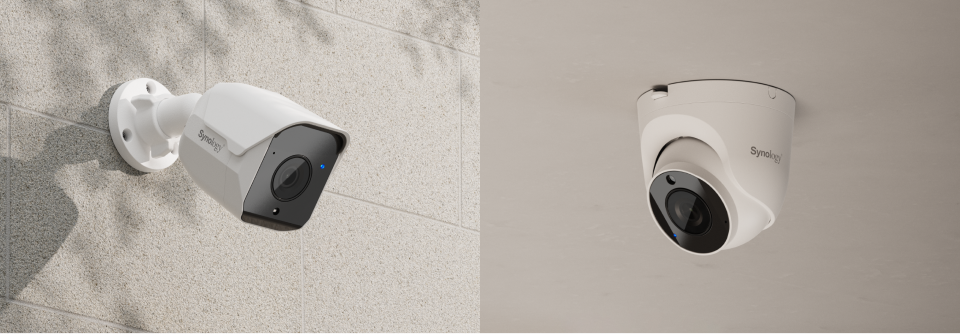
Beachten Sie, was ist nicht Auf dieser Liste stehen: ein NAS, ein NVR, ein Server oder eine Kameralizenz. Genau darum geht es bei diesem Produkt.
Synology Surveillance365 Einrichtung in 4 Schritten
Legen Sie die microSD-Karte ein und schalten Sie die Kamera ein.
Legen Sie vor der Montage in jede Kamera eine microSD-Karte ein – auf dieser Karte werden die Aufnahmen gespeichert. Eine Kamera ohne microSD-Karte streamt zwar live, speichert aber keine Aufzeichnungen. Schließen Sie die Kamera an einen PoE-Switch oder -Injektor an. Ein einziges Kabel überträgt Strom und Daten.
Erstellen Sie Ihr Synology-Konto und sichern Sie es.
Melden Sie sich mit einem Synology-Konto im Surveillance365-Portal an und aktivieren Sie die Multi-Faktor-Authentifizierung. Sie erhalten außerdem einen C2-Verschlüsselungsschlüssel, den nur Sie besitzen. Bewahren Sie diesen sicher und offline auf – Synology kann ihn nicht wiederherstellen, und der Verlust bedeutet den Verlust des Zugriffs auf die verschlüsselten Aufnahmen.
Füge die Kamera dem Portal hinzu.
Im Surveillance365-Webportal oder in der mobilen App wählen Sie „Gerät hinzufügen“ und folgen den Anweisungen zum Koppeln. Die Kamera wird über Ihre Internetverbindung erkannt; Portweiterleitung oder VPN sind nicht erforderlich. Laut Synology dauert die Einrichtung pro Kamera etwa zwei Minuten, was nach der ersten Einrichtung realistisch ist.
Aufzeichnung, KI-Ereignisse und Datensicherung konfigurieren
Stellen Sie den Aufnahmemodus auf kontinuierlich oder ereignisbasiert ein und aktivieren Sie die gewünschten Erkennungstypen: Personen, Fahrzeuge, Eindringen oder Herumlungern. Aktivieren Sie den Modus für geringe Bandbreite, falls die Internetverbindung am Standort schwach ist. Entscheiden Sie abschließend, ob Sie ein Cloud-Backup für externe Kopien abonnieren möchten, und wählen Sie einen Aufbewahrungszeitraum.
Was die in die Kamera integrierte KI erkennt
Die gesamte Analyse erfolgt direkt auf der Kamera, weshalb Warnmeldungen sofort eingehen und nicht erst nach einer Übertragung an ein Rechenzentrum. Folgende Erkennungsarten stehen zur Verfügung:
- Personenerkennung — unterscheidet eine Person von sich bewegendem Laub oder einem vorbeiziehenden Tier, wodurch die meisten Fehlalarme vermieden werden.
- Fahrzeugerkennung — Autos, Lieferwagen und Motorräder, die ins Bild fahren
- Einbruchserkennung — feuert nur, wenn etwas in eine von Ihnen gezeichnete Zone eindringt, nicht das gesamte Bild
- Erkennung von Herumlungern — kennzeichnet Personen, die sich länger als eine von Ihnen festgelegte Schwelle in einem Bereich aufhalten; diese Schwelle wird von Einzelhandelsmanagern namentlich abgefragt.
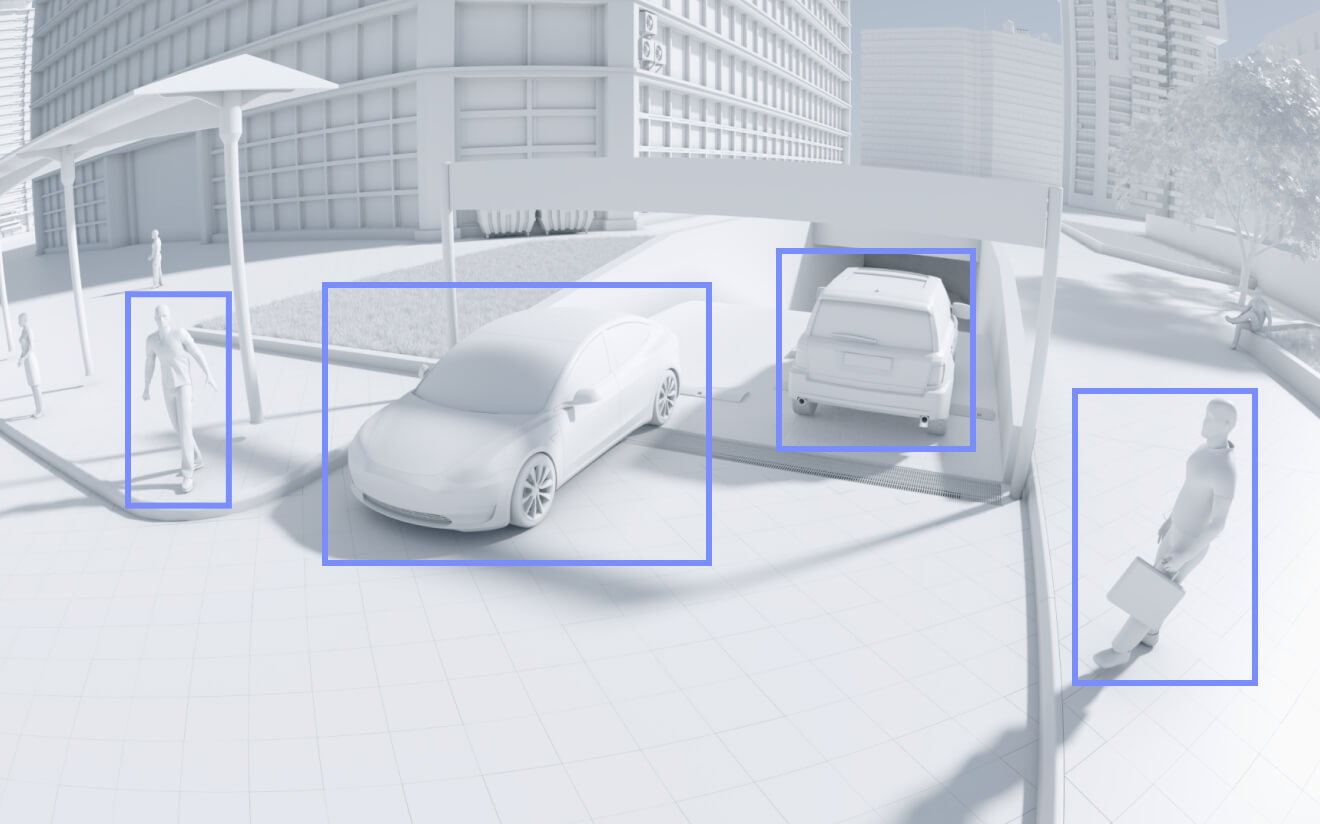
Das Herumlungern ist eine Funktion, die besondere Aufmerksamkeit verdient. Standardmäßige Bewegungsmelder informieren Sie lediglich darüber, dass jemand vorbeigegangen ist; das Herumlungern hingegen signalisiert Ihnen, dass jemand vier Minuten später immer noch an der Hintertür steht. Dieser Unterschied entscheidet darüber, ob Sie eine Meldung ignorieren oder darauf reagieren.
Wie Unternehmen mit mehreren Standorten Synology Surveillance365 nutzen
Am besten eignet sich das System für eine Kette kleinerer Betriebe. Stellen Sie sich sechs Cafés vor: Bisher bedeutete das sechs Rekorder, sechs Wartungsbesuche und sechs komplizierte Fernzugriffseinstellungen. Mit Surveillance365 erhält jeder Laden Kameras – und sonst nichts. Der Gebietsleiter sieht alle sechs Standorte in einem einzigen Browser-Tab.
Baustellen sind der zweite naheliegende und wohl auch der bessere Anwendungsfall. Ein Baustellenbüro ist per Definition temporär, und niemand möchte ein NAS in einem Container installieren und später wieder abbauen. Kameras, die selbstständig aufzeichnen und die Daten in die Cloud übertragen, können je nach Baufortschritt zwischen verschiedenen Baustellen verlegt werden.
Lager und Depots profitieren auf unterschiedliche Weise: Hier liegt der Wert im Prüfprotokoll und den Unterkontoberechtigungen des Business-Plans. Ein Schichtleiter kann seinen eigenen Standort überprüfen, ohne Zugang zum gesamten Gelände zu benötigen, und jede Überprüfung wird protokolliert.
Weniger geeignet ist es für Standorte, an denen bereits ein NAS vorhanden ist. Wenn Ihr Rekorder bereits vor Ort ist und freie Festplatteneinschübe vorhanden sind, ist die lokale Speicherung pro Aufbewahrungstag deutlich günstiger als jedes Cloud-Abonnement.
Standard vs. Business: Was der kostenpflichtige Tarif zusätzlich bietet
| Fähigkeit | Standard (kostenlos) | Geschäftlich (bezahlt) |
|---|---|---|
| Kameraeinrichtung und -konfiguration | Ja | Ja |
| Live-Ansicht und Wiedergabe mehrerer Kameras | Ja | Ja |
| KI-Erkennung mit Benachrichtigungen | Ja | Ja |
| Kontinuierliche Aufzeichnung auf microSD-Karte | Ja | Ja |
| Fernbeobachtungsrelais | 1 Stunde pro Tag, pro Kamera | Unbegrenzt |
| Berechtigungen für Unterkonten | NEIN | Ja |
| Management mehrerer Standorte | NEIN | Ja |
| Aktivitätsprotokolle und Verlauf | NEIN | Ja |
Die für die meisten Nutzer entscheidende Zeile ist die Anzahl der verfügbaren Stunden für die Fernanzeige über den Relay-Dienst von Synology. Im kostenlosen Tarif steht Ihnen pro Kamera und Tag eine Stunde Fernanzeige über den Relay-Dienst von Synology zur Verfügung. Für einen Hausbesitzer, der seine Einfahrt im Blick behält, ist das völlig ausreichend. Für einen Manager, der den ganzen Nachmittag lang eine Live-Wall auf einem zweiten Monitor laufen lässt, reicht das jedoch nicht aus, und der Business-Tarif wird zur Pflicht.
Synology veröffentlicht keine Preise für den Business-Tarif. Fragen Sie daher am besten nach einem Angebot, anstatt von Annahmen auszugehen. Der Standard-Tarif ist hingegen tatsächlich kostenlos und dauerhaft mit Synology-Kameras nutzbar – keine Testversion.
Cloud-Backup und -Aufbewahrung erklärt
Die Aufzeichnung auf einer microSD-Karte innerhalb der Kamera hat eine offensichtliche Schwäche: Wird die Kamera gestohlen, sind auch die Beweise weg. Die optionale Cloud-Sicherung schließt diese Lücke, indem die Aufnahmen auf den C2-Speicher der Synology kopiert werden.
Die Abrechnung erfolgt anhand der gesamten Speicherkapazität Ihres Kontos und nicht pro Kamera. Dies ist besonders vorteilhaft für Liegenschaften mit einer Mischung aus stark frequentierten und weniger frequentierten Standorten. Voreingestellte Aufbewahrungsfristen sind 45, 90 und 180 Tage. Für Organisationen mit regulatorischen Verpflichtungen unterstützt die Plattform eine Aufbewahrungsdauer von bis zu 3.650 Tagen – zehn Jahren.
Alles ist durch einen C2-Verschlüsselungsschlüssel geschützt, der ausschließlich vom Kontoinhaber gehalten wird, und die Plattform entspricht nach eigenen Angaben den Bestimmungen des NDAA und TAA, was wichtig ist, wenn Sie an Regierungs- oder staatlich finanzierte Kunden verkaufen.
Wo finde ich weitere offizielle Ressourcen?
Synology's offizielle Preisseite von Surveillance365 ist die maßgebliche Quelle für Informationen zu Tariffunktionen und Speicherstufen und wird häufiger aktualisiert als die Berichterstattung zum Produktstart. Synology Überwachungszentrale beschreibt, wie die Cloud-Plattform mit Surveillance Station zusammenarbeitet.
Wenn Sie unsererseits Kameras statt Plattformen vergleichen, dann unsere Synology BC510 Testbericht geht detailliert auf die aktuellen Modelle ein – einschließlich der Lizenzänderung in der 510er-Serie, die eng mit dem Aufkommen dieser Cloud-Plattform zusammenhängt.
Synology veröffentlicht für die Surveillance365-Route jeder Kamera ein separates Einrichtungsvideo, das von der Synology NAS-Version getrennt ist – eine nützliche Erinnerung daran, dass es sich hier tatsächlich um zwei verschiedene Produkte handelt, die auf der gleichen Hardware basieren.
Grenzen, die Sie kennen sollten, bevor Sie sich für Survivor365 entscheiden
Die erste und wichtigste Einschränkung: Es funktioniert ausschließlich mit Synology-Kameras. Surveillance Station zeichnet problemlos nahezu alle ONVIF-Kameras auf dem Markt auf, die Cloud-Plattform jedoch nicht. Wenn Sie bereits Kameras von Drittanbietern im Einsatz haben, handelt es sich hierbei nicht um eine Migration, sondern um ein Ersatzprojekt.
Zweitens wird die im kostenlosen Tarif festgelegte Begrenzung auf eine Stunde pro Tag und Kameraübertragung leicht übersehen und überschritten. Testen Sie Ihr tatsächliches Sehverhalten in der ersten Woche, anstatt die Grenze erst im Notfall zu entdecken.
Drittens werden Ihre Aufnahmen auf einer Speicherkarte in einem im Freien montierten Gerät gespeichert. Speicherkarten verschleißen, und eine defekte Karte führt zu einem unbemerkten Ausfall – die Kamera streamt zwar weiter, speichert aber keine Daten. Verwenden Sie daher Speicherkarten mit hoher Lebensdauer und überprüfen Sie deren Zustand regelmäßig, anstatt ihn einfach anzunehmen.
Viertens ist die Speicherkapazität auf der Karte durch deren Größe begrenzt, nicht durch Ihre Wünsche. Kontinuierliche hochauflösende Aufnahmen füllen eine Karte schnell. Benötigen Sie Daten für Wochen statt für Tage, kaufen Sie Cloud-Backup, was die Wirtschaftlichkeit im Vergleich zu lokalen Festplatten erheblich verändert.
Fünftens ist der C2-Verschlüsselungsschlüssel tatsächlich unwiederbringlich verloren. Dies ist gleichermaßen ein Sicherheitsmerkmal und ein potenzielles Sicherheitsrisiko. Drucken Sie ihn aus, bewahren Sie ihn physisch auf und speichern Sie die einzige Kopie nicht in demselben Konto, das er schützt.
Abschließend sei darauf hingewiesen, dass die Preise für den Business-Tarif zum jetzigen Zeitpunkt noch nicht veröffentlicht sind. Falls Ihre Implementierung die Verwaltung mehrerer Standorte oder Unterkonten erfordert, fordern Sie bitte ein schriftliches Angebot an, bevor Sie sich für Surveillance365 entscheiden, da die kostenlose Version allein nicht für den Betrieb mehrerer Standorte ausreicht.
Verweise
- Synology C2 – Surveillance365-Pläne und Preise, der maßgebliche Merkmalsvergleich
- PR Newswire — Synology stellt Surveillance365 vor, die offizielle Markteinführungsankündigung
- Synology – Übersicht über Überwachungslösungen
- TechPlugged – Analyse des Surveillance365-Starts
- Synology — BC510 Kameraspezifikationen
Häufig gestellte Fragen
Ist Synology Surveillance365 kostenlos?
Der Standard-Tarif ist bei Verwendung mit Synology-Kameras kostenlos und dauerhaft nutzbar. Er umfasst Einrichtung, Live-Ansicht, Wiedergabe, KI-gestützte Erkennung in der Kamera und kontinuierliche Aufzeichnung auf microSD-Karte. Der kostenpflichtige Business-Tarif bietet zusätzlich Berechtigungen für Unterkonten, Verwaltung mehrerer Standorte, Aktivitätsprotokolle und unbegrenzte Fernübertragung.
Benötige ich ein NAS, um Surveillance365 nutzen zu können?
Nein. Das ist der Hauptunterschied zu Surveillance Station. Die Kameras zeichnen auf einer microSD-Karte im Inneren der Kamera auf und werden über ein Cloud-Portal verwaltet, sodass kein NAS, NVR oder lokaler Server erforderlich ist.
Benötigt Surveillance365 eine Kameralizenz?
Nein. Die Lizenzgebühr wird für die Aufzeichnung in Surveillance Station auf einem NAS erhoben, nicht für den Besitz der Kamera. Dieselbe BC510 oder TC510 benötigt eine Lizenz für die NAS-Aufzeichnung, jedoch nicht für die Kamera selbst, da die Aufnahmen bei Surveillance365 auf einer microSD-Karte in der Kamera gespeichert werden.
Kann ich Kameras von Drittanbietern mit Surveillance365 verwenden?
Nein. Die Plattform unterstützt ausschließlich Synology-Kameras. Wenn Sie verschiedene ONVIF-Kameras anderer Hersteller verwenden, ist Surveillance Station auf einem NAS weiterhin das richtige Produkt für Sie.
Wo werden meine Videoaufnahmen tatsächlich gespeichert?
Die Aufnahmen werden standardmäßig auf einer microSD-Karte in jeder Kamera gespeichert. Optional kann eine Cloud-Sicherung durchgeführt werden, die Aufnahmen auf dem Synology C2-Speicher speichert. Voreingestellte Aufbewahrungszeiten von 45, 90 und 180 Tagen sowie eine Unterstützung von bis zu 3.650 Tagen sind möglich.
Wie hoch ist das Limit für die Fernanzeige im kostenlosen Tarif?
Der Standard-Tarif beinhaltet eine Stunde Fernzugriff pro Kamera und Tag. Im Business-Tarif entfällt diese Beschränkung. Intensive Fernüberwachung ist der Hauptgrund für einen Wechsel in einen höheren Tarif.
Kann Surveillance365 meine bestehenden Surveillance Station-Aufnahmen sichern?
Ja. Neben der Verwaltung von Cloud-nativen Kameras kann es auch eine externe Kopie des Videomaterials von einem vorhandenen Surveillance Station NAS speichern, sodass die Aufnahmen Diebstahl oder physische Beschädigung des Rekorders überstehen.
Was passiert, wenn ich den C2-Verschlüsselungsschlüssel verliere?
Sie verlieren den Zugriff auf Ihre verschlüsselten Aufnahmen. Der Schlüssel wird ausschließlich vom Kontoinhaber verwahrt und kann von Synology nicht wiederhergestellt werden. Bewahren Sie eine Kopie offline und getrennt von dem Konto auf, das sie schützt.
Alles, was wir auf der Cloud-Seite geschrieben haben, befindet sich hier: Surveillance365-Leitfäden.