

Surveillance Station Home Mode: Auto-Switch Alerts by Wi-Fi or Geofence

Updated on October 29, 2026
Surveillance Station Home Mode is the feature that stops your cameras from notifying you about yourself. It lets the system hold two profiles for every camera, one for when you are at home and one for when you are out, and switch between them automatically based on where your phone is. Set up properly, it is the difference between notifications you read and notifications you swipe away. This guide covers the two ways it can detect that you are home, the one setting that silently breaks the whole thing, and what to check when it refuses to switch.
SynoPower Club Point: The name is the first obstacle. Home Mode sounds like a mode that protects your home, so people switch it on and expect more security. It is the opposite: Home Mode is on while you are home, and it is normally the quieter of the two profiles. Guard Mode would have been the clearer name, because what you are really configuring is what happens when you leave.
What Surveillance Station Home Mode actually does #
Every camera in Surveillance Station carries two sets of settings. The normal set applies by default, and the alternate set applies whenever Home Mode is on. Switching it does not change one global option, it swaps the active profile for every camera you have configured that way.
Two points follow from that, and both surprise people:
- Home Mode is a single system-wide state, not a per-user or per-phone setting. There is one such state for the whole Surveillance Station, and it is either on or off.
- A camera only changes behaviour if you told it to. Enabling the mode does nothing to a camera whose alternate profile is identical to its normal one. This is the single most common reason people conclude the feature is broken.
Three ways the mode can be switched #
Manually #
A toggle in Surveillance Station and in DS cam. Reliable, and worth using while you are still testing, because it lets you confirm that your two profiles actually differ before you add the complication of automatic switching.
On a schedule #
The mode turns on and off at fixed times of day. This suits a shop or an office with predictable hours far better than location detection does, and it has no dependency on anyone’s phone, battery or permissions. If your away periods are the same every weekday, use the schedule and stop reading here.
Automatically, from your phone #
DS cam reports whether you are home, and Surveillance Station follows. This is the interesting option and the rest of this guide is about it. The app offers two detection methods, and they behave quite differently.
- Wi-Fi network. The mode is on while the phone is connected to a named network. It is precise, it costs almost no battery, and it has a sharp edge: the moment the phone drops to mobile data, you are considered away. A brief drop in the garden can flip the mode, and some phones switch away from a weak home network on their own.
- Geofence. It stays on inside a radius you draw on a map. It keeps working when Wi-Fi is off and tolerates a walk around the garden, but it is less exact, it depends on location services staying awake, and in an apartment block a small radius may not be reliable at all.
For a house with solid Wi-Fi coverage, the network method is usually the better trigger. For a flat, or for anyone whose phone roams between networks, the geofence is more forgiving.
Setting up automatic Home Mode in DS cam #
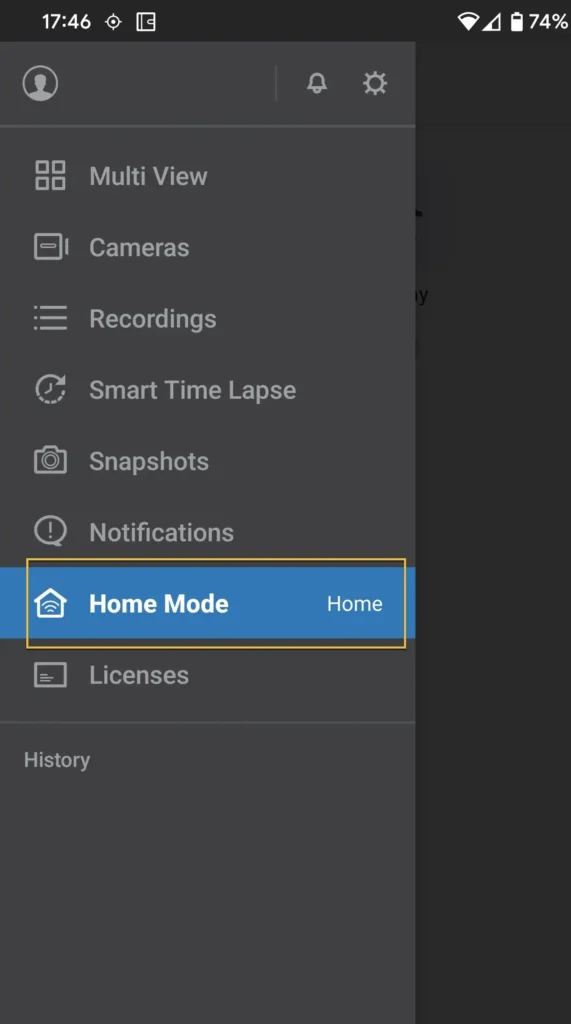
Open DS cam on your phone and go to Home Mode.
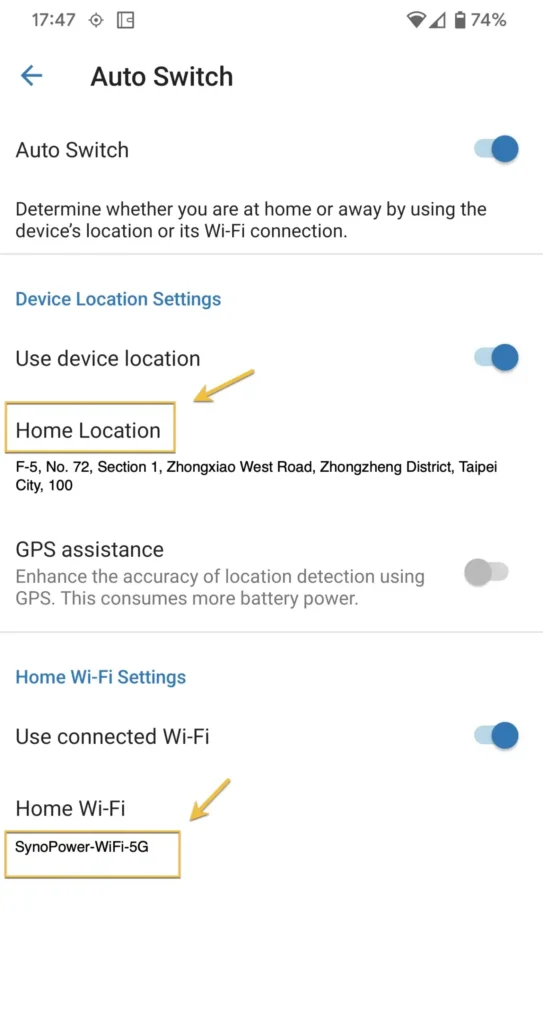
Turn on Auto Switch, then choose the Wi-Fi network or draw the geofence you want to use. The phone now reports its state to the NAS and Surveillance Station follows it.
At this point the switching will work correctly and nothing at all will change, because you have not yet told any camera to behave differently. That is the next step, and it contains the trap.
The notification setting that quietly breaks Home Mode #
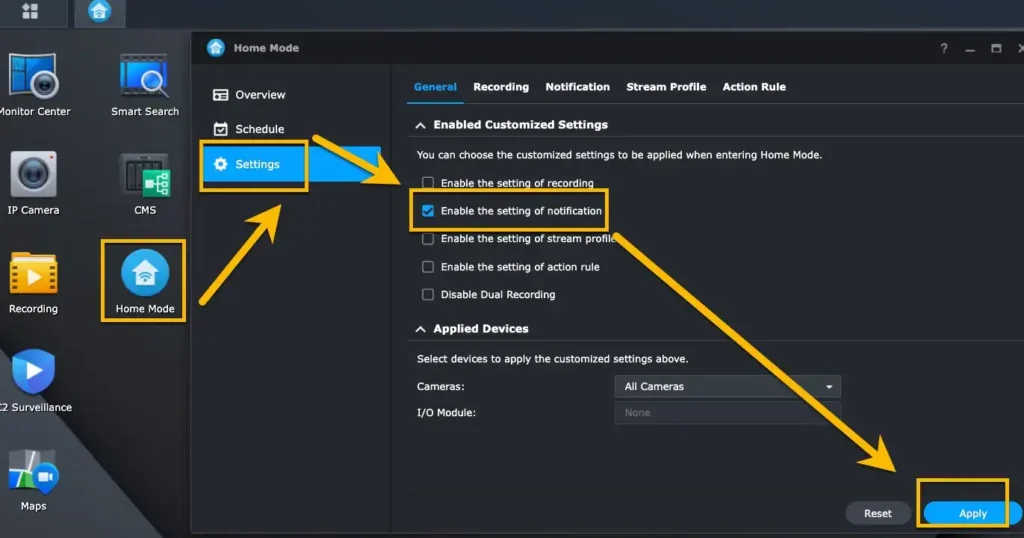
Log in to Surveillance Station in a browser, open Home Mode and then Settings, and enable the notification settings so that the profile is allowed to control them.
Now the part that catches almost everyone. In the main Notification panel, under Mobile, do not select any event. Leave it empty.
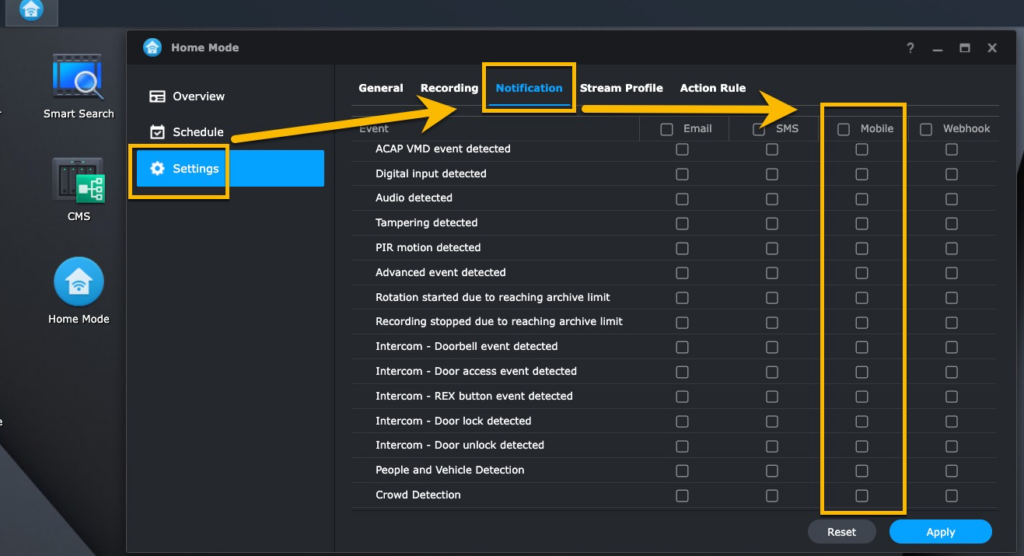
This feels wrong, which is exactly why it is worth documenting. The events ticked in the main Notification panel are the ones that always fire. If motion detection is ticked there, it keeps pushing whether you are home or not, and no alternate profile will stop it. Leaving the list empty hands control of mobile push to Home Mode, which then pushes only in the state you configured.
With that done, the behaviour is the one you wanted: while the phone is on the home network or inside the geofence, DS cam stays silent. The moment you leave, motion notifications resume.
Home Mode setup in 4 steps #
The full reasoning is in the sections above. If you want the short version, this is the whole configuration.
Turn on Auto Switch in DS cam #
Open DS cam on your phone, go to Home Mode and enable Auto Switch. Choose either a Wi-Fi network or a geofence drawn on the map. Grant location permission as the always variant, because a geofence has to be evaluated while the app is closed.
Let the profile control notifications #
Log in to Surveillance Station in a browser, open Home Mode and then Settings, and enable the notification settings so that the profile is allowed to control them. Without this the profile exists but has no authority over mobile push.
Clear the events under Notification and Mobile #
In the main Notification panel, under Mobile, deselect every event. This feels wrong and it is the step that catches almost everyone. Events ticked there always fire, whatever Home Mode says, so leaving the list empty is what hands control to the profile.
Test with the manual toggle before trusting the automation #
Switch Home Mode on and off by hand and watch a camera change behaviour. If nothing changes, the profiles are identical and the switching was never the problem. Only once the manual toggle visibly works should you rely on the phone to do it.
What else the profile can switch #
Notifications are the usual reason people find this feature, but the same profile mechanism covers more, and the extra options are where it becomes genuinely useful:
- Recording schedule. Record continuously while you are out and only on motion while you are home, which saves a large amount of storage without losing the footage that matters.
- Stream profile. Run a lower bitrate while you are home and the full quality stream while you are away.
- Action rules. Trigger a light, a siren or an external device only in the away state.
- Camera enable state. Some people disable indoor cameras entirely while the family is home, which is often the cleanest answer to the privacy objection that indoor cameras raise.
Which of these appear depends on your Surveillance Station version, so open the settings panel and see which tabs your installation offers. Configure them one at a time and test each with the manual toggle before trusting automatic switching.
When Home Mode does not switch #
Automatic switching depends on a background app on a phone whose operating system is actively trying to stop background apps from running. Work through these in order.
- Location permission is not set to Always. The most common cause by far. A geofence has to be evaluated when the app is not open, and permission granted only “while using the app” cannot do that. On both iOS and Android, the permission must be the always variant.
- Battery optimisation is suspending DS cam. Android in particular will freeze background apps to save power, and aggressive vendor power managers are worse than stock Android. Exclude DS cam from battery optimisation.
- Android needs location permission for Wi-Fi names too. Modern Android treats the name of the network you are connected to as location data. If you chose the Wi-Fi method and denied location permission, DS cam cannot see which network you are on.
- The profiles are identical. Toggle the mode manually and watch a camera. If nothing changes, the switching was never the problem.
- Events are still ticked under Notification, Mobile. The trap described above. Those fire regardless of which profile is active.
- Another phone is holding the state. The setting is system-wide. If a second phone also has Auto Switch enabled, whichever device last reported wins, and a family member arriving home can silence your away profile.
- The switch is simply slow. Geofence events are not instant on any platform. Allow a few minutes before deciding it failed, and test by driving or walking a real distance rather than by toggling Wi-Fi.
Using it with more than one person in the house #
Because this is one state for the whole system, a household of two phones both running Auto Switch will fight. The last device to report its state sets it for everyone, so the house can end up in the home profile while one person is still out.
There is no per-user version of it, so the practical answers are to nominate one phone as the one that controls it and turn Auto Switch off everywhere else, or to use the schedule instead if the household keeps regular hours. If what you actually want is per-person notification, that belongs in the notification settings for each Surveillance Station user rather than in Home Mode.
Does Home Mode need a camera license? #
No. Home Mode, notifications, action rules and recording schedules are all part of the package and cost nothing extra. A Surveillance Station license pays for a recording channel, so it governs how many cameras you can connect, not which features you may use.
Every Synology NAS includes two camera licenses, and those two cameras can use everything on this page. Licenses only matter from the third camera onward. Our guide to what Surveillance Station includes for free covers where the free tier ends, and the full Surveillance Station overview covers the rest of the system.
Frequently asked questions about Home Mode #
Does Home Mode on mean I am home or away? #
Home Mode on means you are home. The settings you put in the Home Mode profile are the ones that apply while you are there, which for most people means quieter. The normal profile is the away profile.
Does Home Mode stop recording? #
Only if you configure it to. By default it changes nothing. Muting notifications while still recording is the safer setup, because you keep the footage and lose only the interruptions.
Which is better, the Wi-Fi network or the geofence? #
Wi-Fi is more precise and gentler on the battery, so it suits a house with good coverage. A geofence tolerates the phone dropping off the network and suits flats or anyone whose phone roams. If the Wi-Fi method keeps flipping, move to the geofence rather than fighting it.
Can Home Mode run without DS cam installed? #
Yes. Manual and scheduled switching both run entirely on the NAS. DS cam is only needed for the automatic, location-based method, because that requires something that knows where you are.
Why am I still getting notifications at home? #
In almost every case, events are still selected under Notification and then Mobile. Those fire regardless of the active profile. Clear that list and let the profile control mobile push instead.
Does it work with more than one phone? #
There is one such state for the whole Surveillance Station, so two phones both running Auto Switch will fight and the last device to report wins. Nominate one phone to control it and turn Auto Switch off elsewhere, or use the schedule if the household keeps regular hours.
Why does the mode never switch automatically? #
Usually the location permission. A geofence has to be evaluated while the app is closed, so permission granted only while using the app cannot work; it must be the always variant. Battery optimisation suspending DS cam is the second most common cause, and on Android the Wi-Fi method also needs location permission because the network name counts as location data.
Does it need a Surveillance Station license? #
No. The feature, along with notifications, action rules and recording schedules, is included in the package. A license pays for a recording channel, so it decides how many cameras you can connect rather than which features you may use.
Where can I see DS cam set up on video? #
Home Mode is configured from DS cam, so these three walkthroughs of the app are the most useful video reference. They are independent reviews and tutorials rather than Synology productions.
Official Synology references #
- Surveillance Station Help: Home Mode, the official reference for every option in the Home Mode panel.
- Surveillance Station Help: Notification.
- DS cam product page.
- Synology Surveillance Station knowledge base.
If notifications are the reason you came here, pair this with correctly tuned motion detection. Home Mode decides when you are told, detection settings decide what is worth telling you about, and fixing only one of the two rarely produces a quiet phone.
Have question? Just ask SynoPower Club.